Take a reservation
Take a booking in BANA Sale, see it on the room plan, and check the guest in when they arrive.
On this page
We’re at Quán Nướng Sài Gòn, the grill house where Tuấn Đỗ works his own floor - Cà Phê Sài Gòn sells across a counter and has no tables to book. This is the start of one guest’s visit: the phone call that books a table, and the moment she walks in. The room was built in Set up your floor plan; from here on everything happens in BANA Sale, the POS your staff stand at.
Before you start
- Signed in to BANA Sale at sale.bana.com.vn.
- A floor plan exists. A booking hangs off a real table, and the party size comes from that table’s seats - see Set up your floor plan.
Before the guest arrives
Take the booking
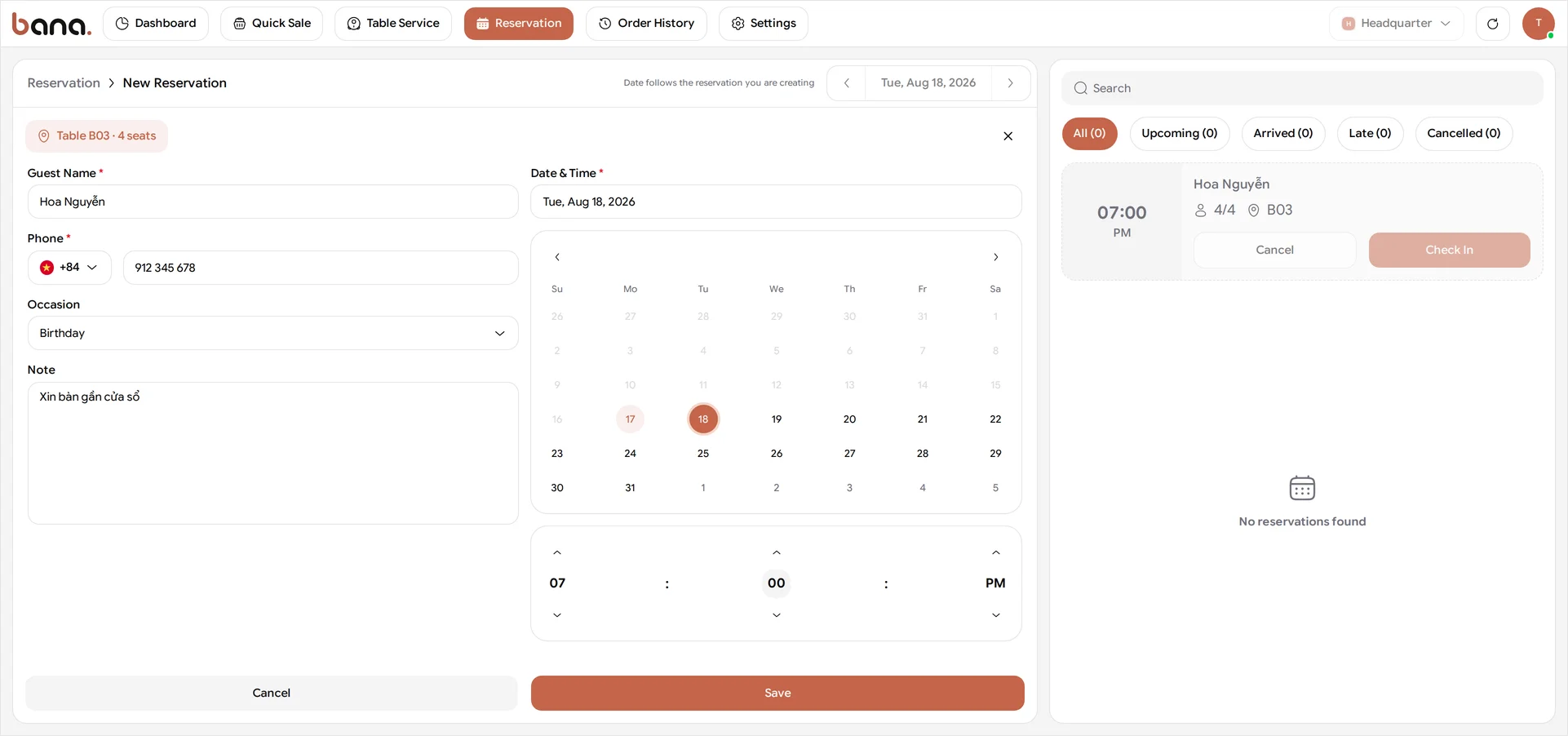
Hoa Nguyễn phones for a table for four at 7:00 PM tomorrow. Bookings are taken in BANA Sale, not the dashboard, and they have their own screen: Reservation in the top bar, then New Reservation. Each table card carries its own New Reservation button too, which is the quicker route when the guest has already asked for a particular table.
Start with Select Table - Tuấn picks B03. The table comes first because the party size follows from it: BANA takes the number of seats you gave that table in the floor plan, which is why B03 books as four. Then fill in Guest Name and Phone, and set the Date & Time. Occasion and Note are optional, but they’re what makes a guest feel expected, so he sets Birthday and types Xin bàn gần cửa sổ - “a table near the window”. Select Save.
A booking is always against one real table at a real time, so the POS greys out any time earlier than right now, and disables Save outright if the booking would overlap one already on that table - it won’t let you double-book. Saved, the booking lands as Confirmed and B03 turns Reserved on the Reservation map.
Booking for six? There is no party-size field to type into - the number comes from the table, so book a table with six seats. At Quán Nướng Sài Gòn that means one of the garden tables, V01–V04, which is exactly why Tuấn built them at 6. The picker shows each table’s seat count next to its name, so you can see the six-seaters as you choose. If none of yours has six, that’s a floor-plan job rather than a booking one: change a table’s seat count in Space & Tables first. Two 4-tops pushed together won’t do it, because Merge Table isn’t available yet and the two would bill separately.
See the booking on the plan
The Reservation screen has the same Canvas view, paired here with Card rather than the wizard’s List. Card is the faster list to scan; Canvas shows you the room itself, with the held table outlined and its chairs shaded, so you can see at a glance whether tonight’s bookings are spread across the floor or stacked in one corner.
When the guest arrives
Check the guest in
The next evening Hoa arrives. In BANA Sale, open Reservation - the list beside the map filters to All, Upcoming, Arrived, Late and Cancelled, each with its count. Find her booking under Upcoming and select Check In. A dialog shows the party and table back to you to confirm; it’s a read-back, not a form, so nothing there can be changed. Select Confirm.
She’s twenty minutes late? Then she’s dropped off Upcoming and is sitting under Late. The table is still held and the booking still checks in the same way - look there before you conclude it vanished. The exception is if someone has turned on Auto-cancel expired reservations in the dashboard, which releases late bookings on a timer you set; see the FAQ below.
Checking in seats the party: the booking moves to Arrived, its row swaps Check In for Go to Order, and Cancel greys out - a party in the room can’t be un-booked. Go to Order and the Table Service route in Serve a table both end on the same screen, so use whichever you’re already looking at.
Note that check-in alone doesn’t change the Table Service map: B03 still reads Available there until you open its order. The booking is what’s been checked in; the table starts working when the first item goes on.
No booking? Nothing extra to do - walk-ins don’t need one. Go to Table Service, pick the free table and select Go to Order, and the meal runs exactly as Serve a table describes.
What the booking states mean
BANA Sale has two table maps and they don’t use the same vocabulary, which is worth knowing before you go looking for a status that isn’t there. Each map colour-codes its own set, and the legend across the top of the map is the key - it names every status and counts the tables sitting in it.
Reservation - the booking map, which only cares whether a table is spoken for:
| Status | Vietnamese | What it means |
|---|---|---|
| Available | Bàn trống | Free to book |
| Reserved | Bàn đã đặt | Held for a booking that hasn’t been checked in - including one running late |
Bookings carry their own set. All, Upcoming, Arrived, Late and Cancelled are the filters down the side of the Reservation list; Confirmed is not a filter but a badge on the booking itself:
| Booking state | What it means |
|---|---|
| Confirmed | Saved and holding the table - where a new booking lands |
| Upcoming | Confirmed, and its time hasn’t come round yet |
| Arrived | Checked in - the party is in the room |
| Late | Its time has passed and nobody checked in. Still live, still checkable-in |
| Cancelled | Called off. Stays on the list under its own filter rather than vanishing |
The Table Service map uses a different set that follows the meal - see Serve a table.
What’s next
- Serve a table - open the table’s order and send each round to the kitchen.
- Configure POS settings - reservation hold time and auto-cancelling late bookings.
Frequently asked questions
Can I take a booking from the dashboard?
No. Bookings live in BANA Sale, on its own Reservation screen - that's where the floor staff work. The dashboard builds the floor plan and reports on the orders that come out of it.
What happens if the guest never turns up?
The booking moves to Late on the Reservation list and the table stays held. In the dashboard, under Settings → POS settings → Reservations, you can set a Reservation hold duration in minutes and turn on Auto-cancel expired reservations, so late bookings release themselves instead of blocking a table all evening.
How do I change or cancel a booking?
Both are on the booking itself in the Reservation list: edit it to change the time or the table, or cancel it. Cancelled bookings stay on the list under the Cancelled filter rather than disappearing, and a checked-in booking can no longer be cancelled.