Track stock and locations
Set up storage locations and record on-hand quantities so Cà Phê Sài Gòn's stock stays accurate.
On this page
Now that you’ve been open a couple of weeks, it’s time to keep the shelves full. Stock tracking tells you how much of each product you have, warns you when items run low, and keeps your reports honest. Cà Phê Sài Gòn tracks its bottled water and take-home coffee, so Lan sets up where stock lives and records what’s on hand.
Before you start
- A product to track. Stock applies to stock-tracked products like
Nước suối 500ml- see Add your first product. - Your store set up - see Set up your store.
- A computer. You can read your stock on a phone, but the editor for changing quantities needs a wider screen.
Set up storage locations
A location is somewhere you hold stock - your shop floor, a stockroom, or a second branch. Every store starts with a default location, so if you sell from one place only, you already have what you need - skip to Track stock for a product. Cà Phê Sài Gòn is opening a second branch, so Lan adds one.
Add a storage location
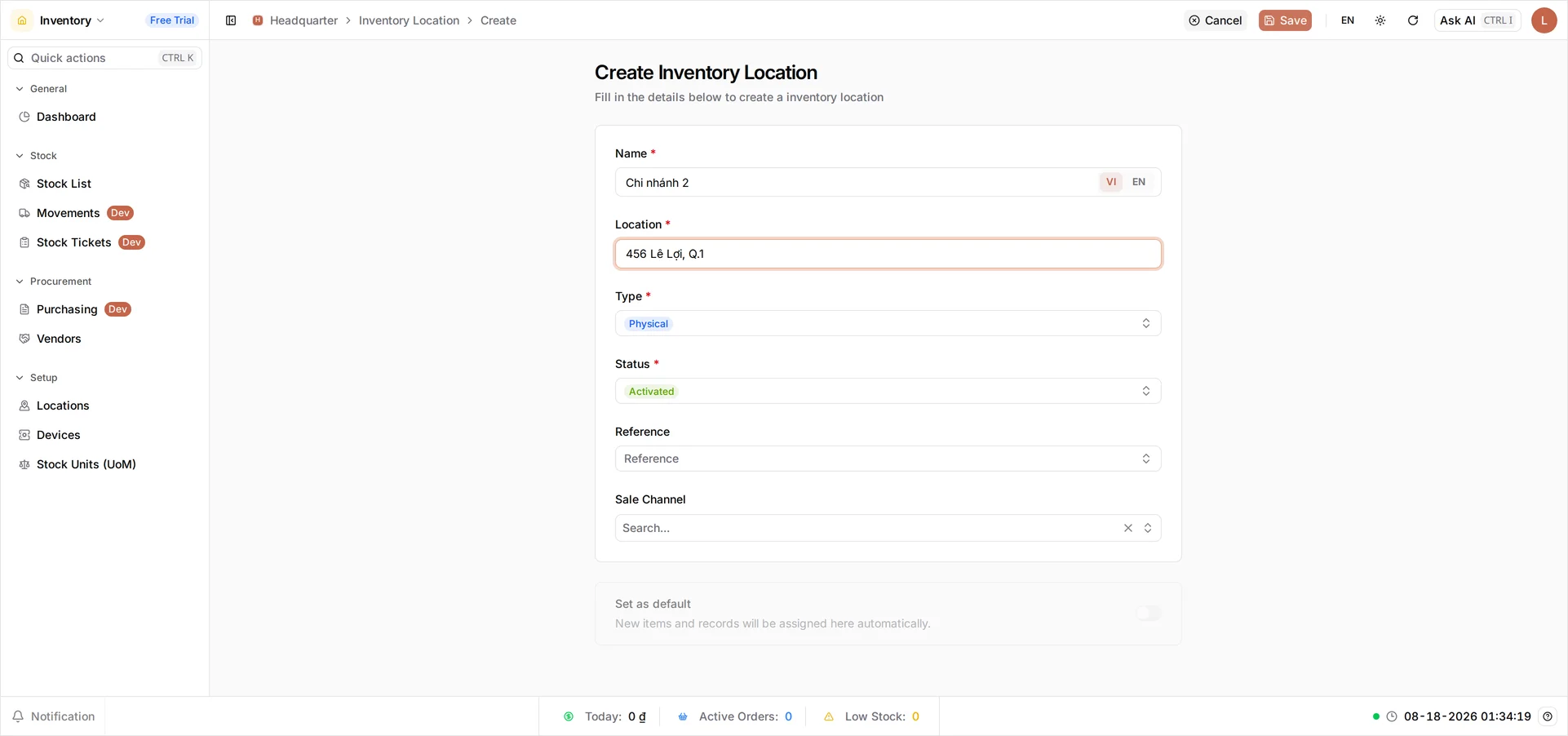
Sign in at client.bana.com.vn, open the Inventory app, and go to Setup > Locations. Select Create, then:
- In Name, type the location name (
Chi nhánh 2). - In Location, enter the address (
456 Lê Lợi, Q.1). - Leave Type as Physical and Status as Activated.
- Select Save.
Reference and Sale Channel are optional - leave them empty unless you sort locations under a parent or fill one channel’s orders from one branch. The Set as default switch at the foot of the form sends new items and records to this location automatically; leave it off if your first location should stay the default.
Track stock for a product
The rest of this guide works at your default location, so the counts below apply whether or not you added a second one.
Open the stock list
In the Inventory app at client.bana.com.vn, go to Stock > Stock List. The Stock screen opens on By item, with four cards across the top: Storable variants, Locations, Inventory value, and Need attention - which counts what is out, low, oversold or held. Below them, every storable variant is listed with its On hand, Reserved, Incoming, Available and Value. Find Nước suối 500ml; its counts start at zero until you record what’s on the shelf.
On a phone: the table keeps its desktop columns, so only Name and Type fit - scroll it sideways for the quantities. Switch By item to By location when you want the same numbers grouped by where the stock sits.
Set the quantity on hand
Select the product’s row. Until you do, the panel on the right just reads Select an item to edit; once you select the row it expands to show each location the item is held at, and that panel turns into the editor for it. Stock is edited one location at a time, so if you added a second branch, select the location line you’re counting before you type.
On the Edit stock tab, set On hand to 100 and select Save. The panel is where you set On hand, Reserved and Cost - the remaining columns on the row, Incoming, Available and Value, have no fields because BANA works them out. Available is simply On hand minus Reserved, and Incoming is what is on purchase orders you have not received yet. From now on this count drops as items sell through the BANA Sale app at sale.bana.com.vn, and rises when you receive a purchase order.
Tip: Getting your opening counts right is what makes low-stock alerts and inventory reports trustworthy. It’s worth a careful first count.
On a phone: the editor panel is squeezed beside the table and its fields don’t fit, in either orientation. Read your stock on a phone by all means, but set quantities from a computer.
What you set up
Your stock is now being tracked:
| Item | Location | On hand | Available |
|---|---|---|---|
| Nước suối 500ml | Default Location | 100 | 100 |
Verify the stock count
Open Stock List again. Nước suối 500ml now shows On hand 100 and Available 100 at one location - your inventory is live, and every sale and goods receipt keeps the count up to date.
What’s next
- See your revenue report - what those stocked items are earning you.
- Manage your products - keep the catalog behind these counts tidy.
Frequently asked questions
Which products should I track stock for?
Track the ones you can run out of - bottled water, retail coffee bags, pastries. Made-to-order drinks don't need stock tracking, since you make them on demand.
Do I have to set up more than one location?
No. Every store starts with a default location, which is enough for a single shop. Add more only when you hold stock in more than one place.
What is the difference between On hand and Available?
On hand is what is physically on your shelf. Available is what you can still sell - On hand minus Reserved. BANA works Available out for you, so there is no field to type it into.
Why is my on-hand count still zero after a sale?
Stock only moves once you've set an opening quantity. Set the on-hand count first, then sales reduce it and received purchase orders increase it automatically. Sales made before you set that count are not applied retroactively, so count the shelf as it is today and enter that number.