Adjust stock quantity
Change the on-hand count for a product that already has one, and understand why Available can be lower than what's on the shelf.
On this page
Stock moves on its own once it’s set up - sales take it down, received purchase orders put it back. But counts drift, deliveries arrive, and sometimes the till refuses an item you can see on the shelf. This guide changes the count for a product that already has one, and explains the figure that catches people out.
If the product has never been counted at all, start with Track stock and locations - that covers setting a location up and recording an opening count for the first time.
Before you start
- You’re signed in to the dashboard at client.bana.com.vn as the owner or store manager.
- A physical count of what’s actually there. On hand is a total, not an adjustment - you type what you counted, not the difference.
Change the count
Find the item in the stock list
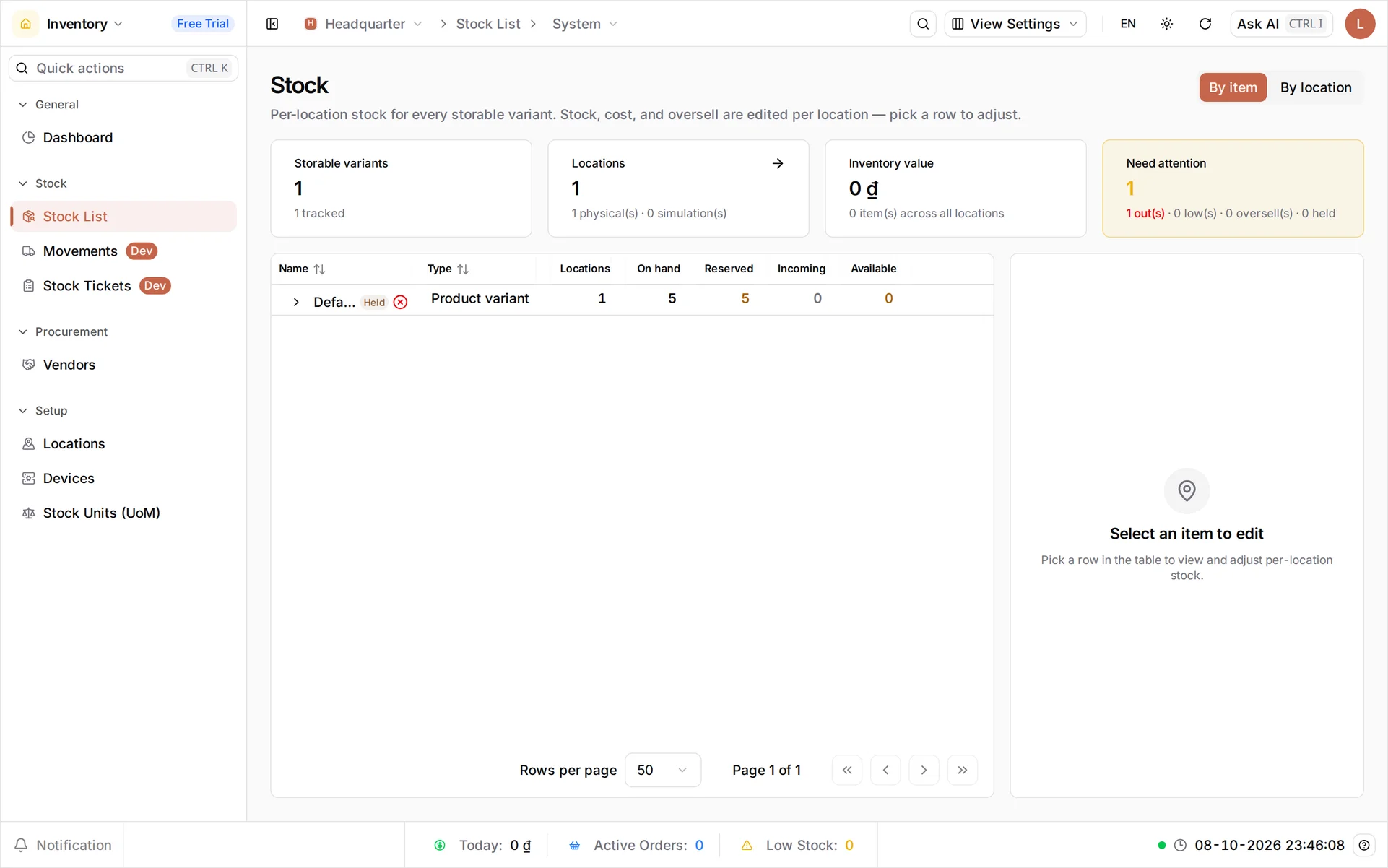
In the Inventory app, go to Stock > Stock List. The Stock screen opens on By item, with four cards across the top - Storable variants, Locations, Inventory value and Need attention, which counts what is out, low, oversold or held.
Below them each storable variant is listed with its On hand, Reserved, Incoming, Available and Value. Find the item - Lan is counting Nước suối 500ml. Products in several sizes appear as one row per size, and each is counted separately.
Read Available, not On hand
Select the row to open the editor on the right, and look at the three figures before you change anything:
24On handwhat is on the shelf − 5Reservedheld by open orders = 19Availablethe figure the till checks
The till checks Available. That’s why an item showing five in stock can still be refused: if all five sit in Reserved, Available is zero and there is nothing left to sell. Neither Available nor Projected has an input box - as the panel says, they are computed by the database.
If Reserved looks wrong, select See holder(s) beside it to see which orders are holding the stock. Unfinished orders that will never be completed are the usual culprit; closing or cancelling them releases the stock on its own, and is a better fix than inflating the count.
Type the count you actually have
Select On hand and type the new total. Lan counted twenty-four bottles, so 24 - not +19.
Reason is optional; left blank the ledger records Correction. Fill it in when the change is large or unusual, so the history still makes sense in a month. Delivery is a good example.
The panel marks itself Unsaved changes until you select Save. Changes apply to the location you have open - if you run more than one, the others are listed underneath and each needs its own count.
Warning: don’t raise On hand just to clear a refusal at the till. It puts stock into your reports that doesn’t exist on the shelf. If the item is genuinely never counted - anything made to order - the honest fix is Allow oversell, not an invented number.
Verify the new count
The table row updates as soon as you save: On hand shows what you counted, and Available recalculates against whatever is still reserved. That new Available figure is what the POS will honour.
If the POS is already open, reopen the sale screen - it loads the product list at that moment, so a change made mid-shift isn’t picked up until it does.
What you changed
| Item | On hand | Reserved | Available |
|---|---|---|---|
| Nước suối 500ml | 24 - counted | 5 | 19 - what the till can sell |
Troubleshooting
- The till still refuses the item: check Available, not On hand. Reserved stock doesn’t sell.
- Reserved won’t go down: it’s held by open orders. Use See holder(s) to find them and finish or cancel them.
- “Reserved cannot exceed On hand unless oversell is allowed”: you’ve typed an On hand lower than what’s already promised. Raise the count, or release the reservations first.
- The item isn’t in the stock list: only Storable products are tracked. A Service or Combo has no count.
- The count is right at one branch and wrong at another: stock is per location. Edit each one.
What’s next
- Set stock up from scratch - track stock and storage locations.
- Stop counting items you never count - turn on Allow oversell instead.
- Bring more in by receiving a purchase order under Inventory → Purchase orders.
Count the shelf, type the total, and the till sells what you actually have.
Frequently asked questions
Why does the POS refuse an item when On hand clearly shows 5?
Because the till checks Available, not On hand. Available is On hand minus Reserved, and open orders hold stock in Reserved. Five bottles with five held by unfinished orders leaves nothing available to sell.
Do I type the difference or the new total?
The new total. On hand is the figure you counted on the shelf, not an adjustment to add or subtract. Counted twelve, type 12.
Do I have to give a reason?
No. Reason is optional, and left blank the ledger records the change as Correction. It's worth filling in when the change is large or unusual, so the history explains itself later.
Can I set On hand for all my branches at once?
No. Stock is counted per location, so each one is edited separately. The panel names the location it is editing just under the item name.
My product has sizes. Which row do I count?
Each one. Every variant has its own stock record, so a drink in three sizes has three counts to keep - the stock list shows them as separate rows.