Fix a product that won't sell
Work out why a product you just created is refused at the till, and put it right in the stock list.
On this page
The product is in your catalog, it looks right, and the till still won’t take it. This morning the Croissant bơ card on the till is greyed out and reads Out of Stock, and tapping it does nothing - the tray the café counted in has sold through, and the count is sitting at zero. Nothing is broken; BANA is protecting a number. This guide finds the cause and fixes it in the two minutes before the queue builds.
Before you start
- You’re signed in to the dashboard at client.bana.com.vn as the owner.
- Know which item is failing, and whether it’s something you count.
Two symptoms, two different causes - check which one you have:
| What you see at the till | What it means |
|---|---|
| The item isn’t on the POS grid at all | A status problem. Start at step 1 |
| The item is there but greyed out, reading Out of Stock | A stock problem. Skip to step 2 |
Find the cause
Check both statuses are Activated
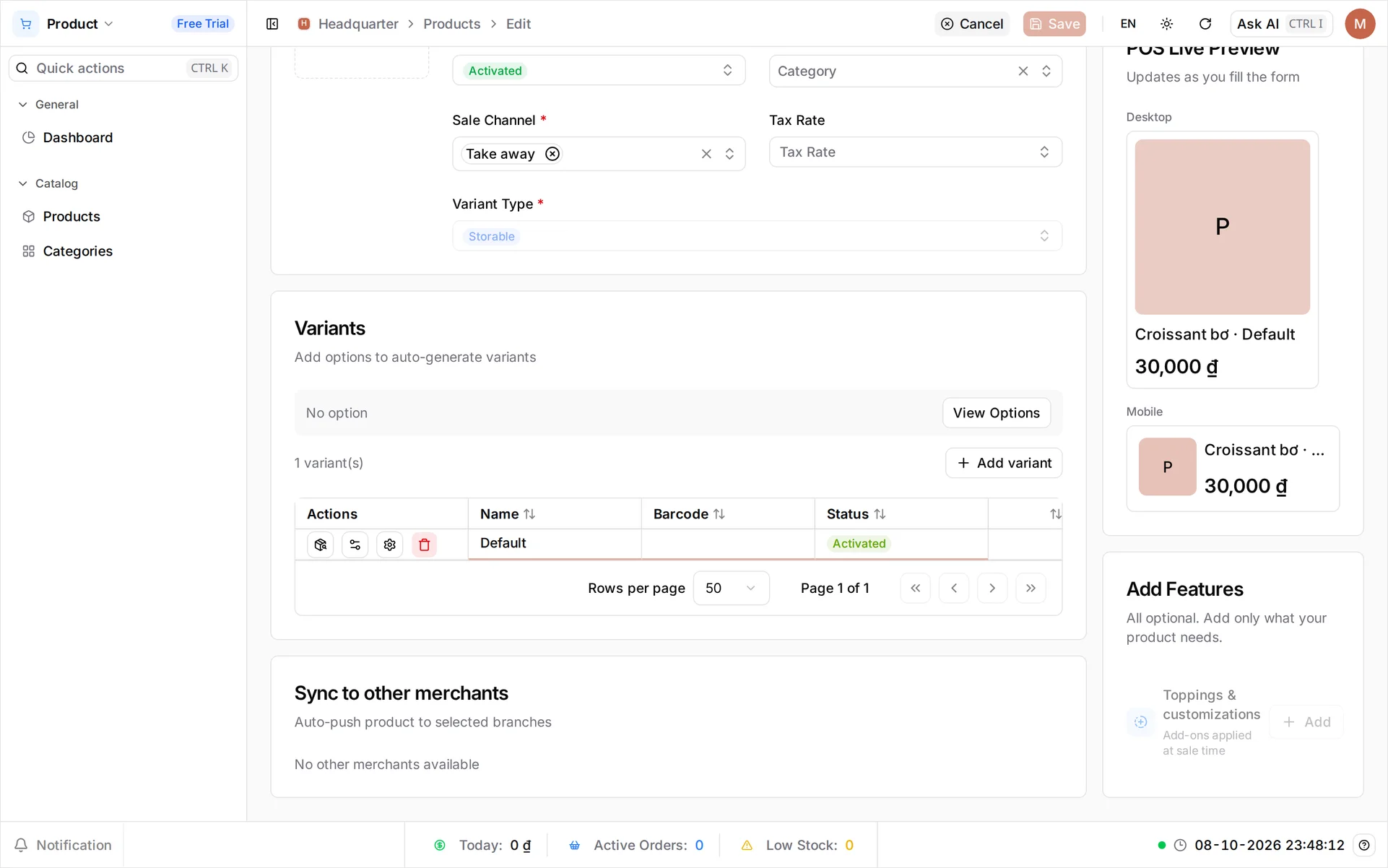
Open Catalog → Products and open the product. There are two statuses, and both must read Activated:
- Status in the Basic Information card - the product itself.
- The Status cell on each row of the Variants grid - every variant is switched on separately.
This catches people out because the product list only shows the first one. A product can sit there reading Activated while the variant underneath it is still Draft, and the POS never lists it. Set any variant you sell to Activated, and unlike stock, this stays editable for the life of the product.
Check whether the item tracks stock
Still in Basic Information, look at Variant Type. It’s greyed out - it was fixed when you created the product - but what it says decides whether stock can block a sale at all:
| Variant Type | Stock-checked at the till? |
|---|---|
| Storable | Yes - the rest of this guide applies to it directly |
| Service | No. It has no stock and can never be blocked by one |
| Combo | Not itself - but the items inside it are checked |
If it reads Storable, the count is almost certainly zero. Carry on to the next step.
If it reads Combo, the combo is fine; one of the items inside it is out. Open the combo, note what it contains, and run the rest of this guide on each of those items in turn - they are ordinary Storable products with their own counts.
If it reads Service, stock cannot be the cause. Go back to step 1 and check both statuses; if those are already Activated, see the Troubleshooting list at the end for the remaining causes.
Why you can’t just fix it here: on a saved product, Stock, Cost and Allow Oversell are read-only; Selling Price stays editable. They can only be typed while a variant row is new. That isn’t a bug - stock belongs to a location, not to the product, so once the item exists you manage it in the stock list. That’s the next step.
Put it right
Open the item in the stock list
In the Inventory app, go to Stock > Stock List. The Stock screen opens on By item, listing every storable variant with its On hand, Reserved, Available and Value. An item that has sold through - or was never counted in the first place - reads 0, and Available is what the till checks.
Select the row. The panel on the right turns into Edit Stock for that item, which names the location it is editing - Default Location (Default) on a single-site shop. If you run more than one storage location, pick the line for the location the till sells from before you type.
A note on names: two things are called something different here than on the product form. Stock is On hand, and Allow Oversell is Allow oversell. Same settings, different screen.
Give it stock, or let it sell at zero
Two fixes, and which one is right depends on the item rather than on the error:
- You count it - bakery deliveries, bottled water, bags of beans. Type the real figure into On hand. This morning’s tray held twelve croissants, so
12. Available recalculates as you go: it’s On hand minus Reserved, and BANA computes it for you. - You never count it - anything made to order. Switch on Allow oversell, described as Continue selling when stock reaches 0 at this location. The count stays at zero and the till stops caring.
Reason is optional; left blank the ledger records Correction. Select Save.
Tip: if you’re setting Allow oversell on something with nothing physical to hand over - a delivery fee, a booking charge - the tidier fix is to rebuild it as a Service, which is never stock-checked. See Choose a product type.
What you fixed
Croissant bơ is now sellable, and you know which lever did it:
| Kind of item | What you set | Where |
|---|---|---|
| Counted | On hand = the real figure | Stock list, per location |
| Never counted | Allow oversell on | Stock list, per location |
| Not stock-tracked at all | Nothing - it was a status | Product form, Status |
Verify at the POS
Open BANA Sale at sale.bana.com.vn and find the item’s card. It is no longer greyed out, and Out of Stock has become Stock: 12 - or gone entirely, if you chose to allow oversell - and tapping it drops the item into the order at its price. If the POS was already open, refresh it first - it loads the product list when the sale screen opens, so a change made mid-shift won’t appear until it reloads.
Troubleshooting
- The refusal names a product variant and a location in code, not names: that message is written for support, not for the shop. The number after
available:is the one that matters - if it reads0, this guide is the fix. - You ticked Allow Oversell when you created the product, and it still refuses: check the location. The setting lives on the stock row for one location, so a second branch needs its own.
- The item sells at one branch but not another: same cause - count and oversell are both per location.
- Allow oversell won’t switch off: it can’t while the item is already oversold. Bring On hand back to zero or above first.
- You fixed it but the till still refuses: the POS caches the product list from when the sale screen opened. Reload it.
- The item still isn’t on the grid, and the statuses are both Activated: confirm you’re looking at the right store - a product belongs to the store it was created in, and isn’t shared until you sync it.
What’s next
- Keep counts honest from here - track stock and storage locations.
- Avoid the problem on the next product - add your first product.
- Pick a type that never needs stock - choose the right product type.
Two minutes, one number or one switch, and the queue keeps moving.
Frequently asked questions
Why can't I edit Stock or Allow Oversell on the product any more?
Those two, along with Cost, can only be typed while a variant row is new - Selling Price stays editable. Once the product is saved they are managed from the stock list instead, because stock belongs to a location rather than to the product. Open Inventory, find the item, and edit it there.
My product isn't even showing on the POS. Is that the same problem?
No, that's a different one. Out-of-stock items still appear on the POS, greyed out and reading Out of Stock. If the item is missing from the grid entirely, its status is the cause - check that both the product and the variant row are Activated.
Do services and combos need stock?
A Service never needs stock and is never blocked by it. A Combo holds no stock of its own, but the items inside it are checked - so a combo fails when one of its components is out. Fix the component, not the combo.
I ticked Allow Oversell but the POS still refuses the item.
Allow oversell applies to one location at a time. If you have more than one storage location, check you set it on the location the till is selling from - the edit panel names the location it is editing just under the item name.
Can I turn Allow oversell back off later?
Yes, but not while the item is already oversold. If available has gone negative, bring the count back to zero or above first, then switch it off.