Add your first product
Build a product with three options and price the twelve variants BANA generates for you.
On this page
A product is anything you sell. This guide builds Cà Phê Sài Gòn’s Cà phê Latte - three sizes, hot or iced, dairy or plant milk - and lets BANA turn those choices into the twelve items your cashier can actually ring up.
Twelve sounds like a lot. You will type three short lists.
Before you start
- A BANA account with a store and at least one category. If you haven’t made a category yet, see Organize by category.
- The prices. For the Latte, Size sets the base -
39,000(S),45,000(M),49,000(L) - Sữa hạt adds6,000, and hot or iced costs the same. - Optional: a photo of the drink.
Create a product
Open the product list
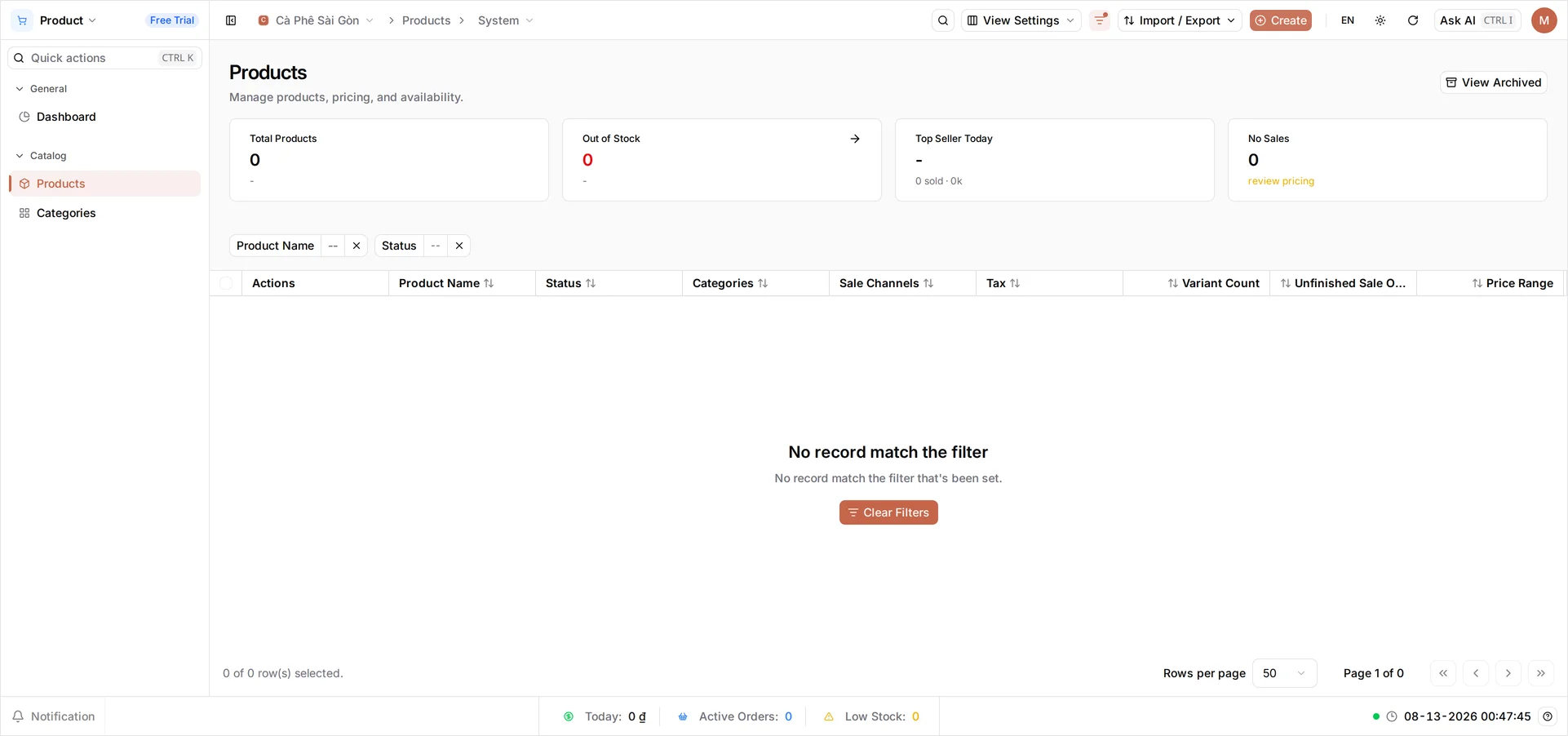
From the sidebar, open Products under Catalog. This is your whole catalog in one place, with four counters across the top - Total Products, Out of Stock, Top Seller Today, No Sales - that stay at zero until you have products and sales to count. A brand-new shop has nothing to list yet. Select Create in the top bar.
Fill in the basic details
The Create Product page saves in one go, so work down the whole form and select Save once, at the end. Under Basic Information:
- Select the image square and choose a photo. This is optional, but the photo is what your cashier reaches for on a crowded POS screen.
- Product Name -
Cà phê Latte. The field carries a VI / EN toggle; the Vietnamese side is the one that has to be filled. - Status - leave it as Activated so the product is ready to sell.
- Category - choose
Đồ uống. - Sale Channel - choose the sale channels this product sells through. BANA created them when you signed up; in our café those are Offline, Take away, and GrabFood. Select all three so the Latte is ready to ring up at the counter, on a takeaway order, and on delivery. The field is required - without it the product never reaches the POS. To add new channels later, see Create a sale channel.
Leave Tax Rate empty and Variant Type as Storable - the right choice for a café drink, and a permanent one, which Choose a product type explains in full. The POS Live Preview on the right is the card your cashier will tap, drawn in both desktop and phone shapes, and it updates as you type. Add Features below it is optional - skip it.
On a phone: this page keeps its wide layout on small screens, so you’ll be scrolling sideways to reach the right-hand fields. It gets worse further down: in the variant grid the Name column is pinned and fills the whole screen, which leaves no room for Selling Price or Allow Oversell. Create your products on a computer.
Describe the three options
The Latte comes in three sizes, hot or iced, with dairy or plant milk. Rather than creating twelve products, describe each choice once as an option and let BANA build the variants. In the Variants section:
- Select View Options. The section starts collapsed and shows only No option.
- Select Add option. Option 1 appears with an empty name field.
- Name it
Size. Like Product Name, this field carries its own VI / EN toggle, and the Vietnamese side is the one that has to be filled. Leave it empty and Save is refused later, at the bottom of the form - BANA reopens this section and marks the field Option Name (VI) is required. - Inside the Option 1 card, select the small Add button - not Add option, which starts a second option. Type
Sand pressEnter, then repeat forMandL. Each value becomes a chip you can remove with its x. - Now select Add option twice more and fill them the same way: Option 2 named
Pha chếwith the valuesNóngandĐá, then Option 3 namedSữawithSữa bòandSữa hạt.
Auto-preview now reads 12 variant(s) will be generated - three sizes × two preparations × two milks. Select Generate 12 Variants and confirm with Apply changes in the Re-generate variants? dialog.
Add every option before you generate. Generating again after you have priced the grid rebuilds it from scratch, and the prices go with it. Three options, then one Generate.
Price the twelve variants
The section now lists 12 variant(s), one row per combination, in the order the options were added - all three S rows, then M, then L. Select each row’s Selling Price cell, type the price, and press Enter.
Two of the three options move the price:
| Size | With Sữa bò | With Sữa hạt |
|---|---|---|
| S | 39,000 | 45,000 |
| M | 45,000 | 51,000 |
| L | 49,000 | 55,000 |
Hot or iced costs the same, so each figure above is typed twice - once on the Nóng row, once on the Đá row.
That is the part worth pausing on. An option is a choice you offer, not automatically a charge you make. Sizes cost more because there is more coffee in the cup; plant milk costs more because it costs you more; hot and iced cost the same because they take the same ingredients. You decide, one variant at a time, and the POS charges exactly what this grid says.
Let the POS sell without a stock count
The grid is wider than the screen. Scroll it sideways, past Listing Price and Stock, until Cost and Allow Oversell come into view - the Name column stays pinned on the left so you can still tell the rows apart. Tick Allow Oversell on all twelve.
Coffee is made to order, so you never count it. But a Storable variant is saved with a stock of 0, and the POS won’t sell something it believes it has none of. Allow Oversell switches that check off for this item, so you can start selling today and leave stock counting for the things you really do count, like bottled water.
Do not skip this. Every row needs one of the two - ask “will this ever run out?” If no, tick Allow Oversell and leave Stock at 0. If yes, leave the tick clear and type what you have into Stock. A row with neither saves fine and is then refused at the till. Choose a product type covers when to reach for each.
Warning: Stock, Cost and Allow Oversell can only be typed while a variant row is new. Once you save they turn read-only here, and are fixed under Inventory → Stock instead. Selling Price and Listing Price stay editable at any time.
Select Save in the top bar.
What you created
Your catalog now has its first product, ready to sell:
| Product | Category | Options | Variants | Price range | Stock |
|---|---|---|---|---|---|
| Cà phê Latte | Đồ uống | Size · Pha chế · Sữa | 12 | 39,000 – 55,000 | 0 on hand - Allow Oversell lets it sell anyway |
Verify in the product list
Open Catalog → Products to see your catalog. Cà phê Latte appears with Activated status, its Đồ uống category, and the three sale channels you picked - one row for the whole drink, with its twelve variants behind it. It’s now in the BANA Sale POS app at sale.bana.com.vn, where tapping its card asks the cashier for Size, Pha chế and Sữa, and prices the cup accordingly.
Tip: To charge tax, set up a tax type under Pricing → Tax type and attach it to the product. Time-limited discounts are handled in Commerce → Promotions.
Troubleshooting
- The POS refuses the product, mentioning insufficient stock: the variant has a stock of
0and no Allow Oversell. Open Inventory → Stock, select the item, and either type a figure into On hand or switch on Allow oversell. - The product isn’t on the POS grid at all: that’s a status, not stock. Both the product’s Status and the Status on each variant row have to read Activated; the product list only shows the first of the two. Check the Sale Channel too - a product sells only on the channels it was given, and the till is serving one of them.
- Only some combinations show up at the till: each variant carries its own Status. A row left Deactivated is missing from the option picker while the rest of the product sells normally.
- Stock and Allow Oversell are greyed out when you reopen the product: expected. They’re only editable while a variant row is new, and are managed per location in the stock list afterwards.
- You changed something but the POS still shows the old version: the POS loads the product list when the sale screen opens. Reload it.
What’s next
- Choose a product type - what Storable, Service and Combo each mean, and why the choice is permanent
- Complete your product list - add the rest of your products,
Cà phê sữa đáincluded - Set up options and variants - a second product, with two options instead of three
Frequently asked questions
Why describe options instead of creating twelve products?
Because they are one drink. Options let you say 'three sizes, hot or iced, dairy or plant milk' once, and BANA works out the twelve combinations for you. Twelve separate products would mean twelve rows to maintain, twelve photos to upload, and a POS grid your cashier has to hunt through.
Does every option have to change the price?
No, and the Latte is the proof. Size changes it, plant milk adds 6,000, and hot-or-iced costs the same either way. Options describe the choice; prices are set per variant afterwards, so you decide which choices cost money.
Twelve rows is a lot of typing. Can I set one price for all of them?
Not in one action - each variant carries its own Selling Price. If most combinations share a figure, type them in order down the column; the grid keeps your place. A wrong figure is not final: reopen the product later and retype it on that row.
The variants table has more columns than I can see. Where are the rest?
Scroll the table sideways. It carries far more columns than fit on screen - Barcode, Status, Listing Price, Stock, Cost, Allow Oversell and more. The Name column stays pinned on the left, so you never lose track of which row you are editing.
Can I change the price later?
Yes. Reopen the product, type the new figure into the row's Selling Price and Save; the till charges it from the next sale. Only Stock, Cost and Allow Oversell lock after saving - those three are managed under Inventory.