Record income and expenses
Log the money that never touches the till - the monthly rent going out, a supplier rebate coming in - so your books match your cash.
On this page
For a year, Minh tracked rent and the odd bit of side income in a paper notebook. The Finance app replaces it: every movement of money is one entry - a voucher - and the month’s totals keep themselves. This guide records the two Cà Phê Sài Gòn sees most: the monthly rent going out, and a rebate from the coffee supplier coming in.
Before you start
- You’re signed in to the dashboard at client.bana.com.vn as the owner.
- You have a finance account to pay from, and your shop has the categories to file entries under. Cà Phê Sài Gòn uses two: Rent for money out, Other income for money in.
- Sales you ring up on the POS reach this list on their own, and your revenue report alongside it. Record by hand only the money that never touched the till.
Note: The Categories screen has been taken out of the Finance app, so you cannot add one yourself right now. Every voucher line still needs a category - so if Category offers you nothing to pick, your shop has none, and the steps below cannot be completed until someone adds them. Ask your BANA contact to set up the categories your shop needs. See Finance categories.
Record money going out
Open the money log
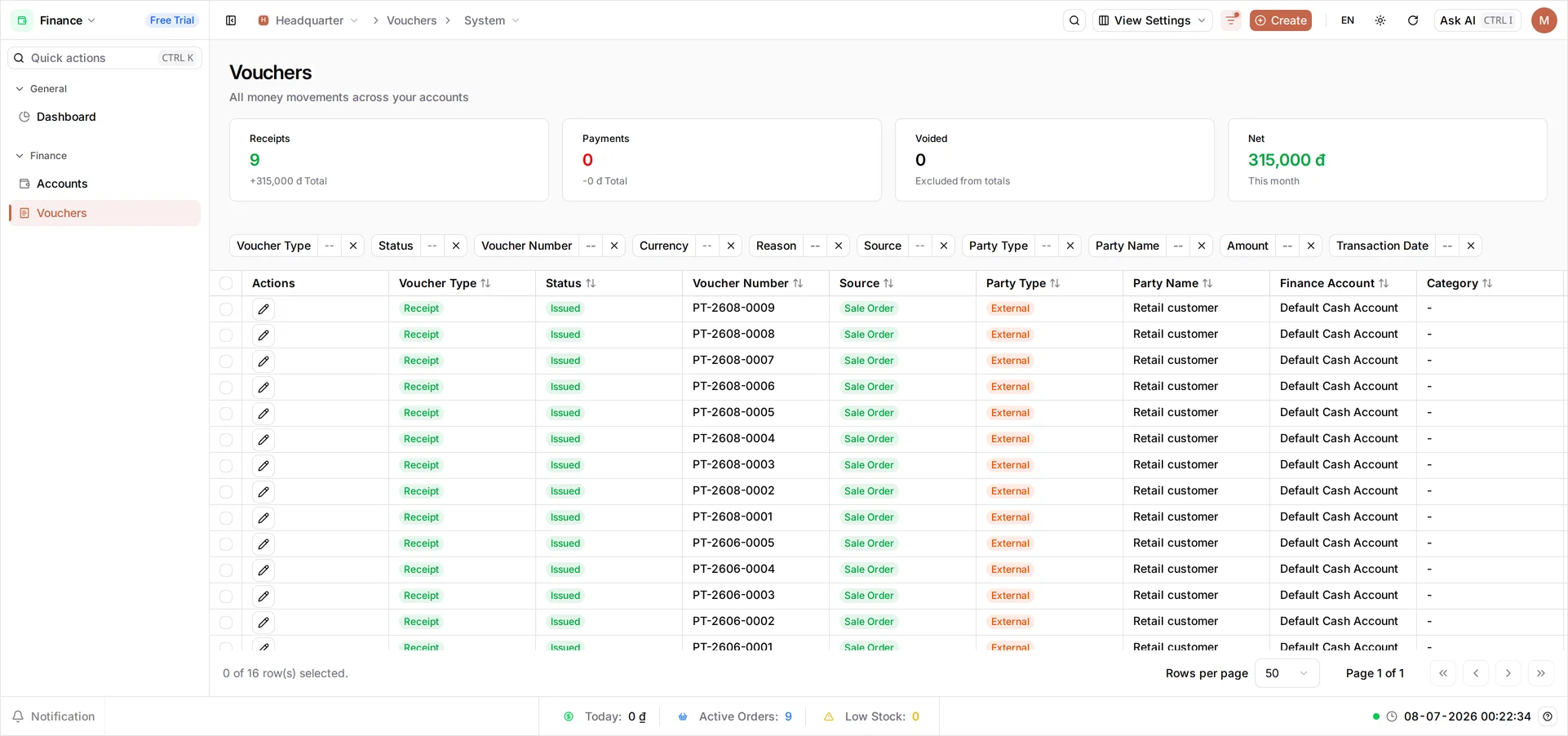
Open Finance from the dashboard, then Vouchers - every movement of money across your accounts, in one list. Four cards run across the top, counting the current month: Receipts, Payments, Voided and Net.
The list is rarely empty, because every POS sale files itself here as a Receipt with a Source of Sale Order. What you add by hand - including anything you recorded on an earlier day - shows a Source of Manual. That column is what tells your entries apart from the till’s. Select Create.
Record what you paid out
Pick the Payment card - money out. Leave Currency as VND. Write a short Reason like Rent — June 2026: it’s what you’ll recognize in the list months from now, and it’s where you say which month a bill covers, since an entry is dated the day you issue it. Under Party, set Party Type to External and type who you paid - Landlord - as the Party Name. Then fill the Transaction line: Finance Account is the account the money actually moved through, here the Default Cash Account; Category is Rent; Amount is 15,000,000. The Transaction card keeps a running Total, and the Voucher Preview on the right shows the entry as it will be filed.
Select Save & Issue - that numbers the voucher, locks it, and files it in the ledger.
Tip: Not ready to commit? Save Draft files it unnumbered and still editable; open it again from the list when you want to issue it.
Tip: Paying someone already saved in BANA? Set Party Type to Vendor or Employee and search for them by name instead of typing it. Paying two costs from one drawer on the same day? Add Transaction puts a second line on the same voucher, each line with its own category.
Record money coming in
Record what came in
Money in is the same form with a different card. Select Create, then pick Receipt. Give it a Reason - Supplier rebate — Cà Phê Cầu Đất - and, again under Party, External with Công ty TNHH Cà Phê Cầu Đất as the Party Name. On the Transaction line, choose the Default Cash Account, the Other income category, and an Amount of 500,000. Select Save & Issue.
Verify in the ledger
Both entries now sit at the top of the Vouchers list, each with a Voucher Number - PC- for a payment, PT- for a receipt - and a Status of Issued. Their Source reads Manual and their Category shows Rent and Other income, while POS sales carry Sale Order and no category at all. Amount carries its direction: the payment in red with a minus, the receipt in green with a plus. The cards up top count every voucher of the month, the till’s included, so Payments now has your rent in it and Net is what the month comes to across both kinds of entry.
Spotted a mistake? An issued voucher cannot be edited - open it, select Void and give a reason, then record a correct one. The voided entry stays in the list and leaves the totals, which is what the Voided card counts.
On a phone: the list keeps its desktop layout and clips to the Actions and Voucher Type columns, so Source, Category and Amount need a wider screen to read.
What you recorded
| Reason | Type | Party | Category | Amount |
|---|---|---|---|---|
| Rent - June 2026 | Payment | Landlord | Rent | −15,000,000₫ |
| Supplier rebate - Cà Phê Cầu Đất | Receipt | Công ty TNHH Cà Phê Cầu Đất | Other income | +500,000₫ |
Both came out of and went into the Default Cash Account, so its balance now reflects them, and the month’s Net has moved by the difference.
What’s next
- See the bigger picture in your revenue report.
- Log each cost as it happens, so month-end needs no catching up.
You’re all set - your books now match your cash drawer.
Frequently asked questions
Do I need to record my sales here too?
No. Every POS sale already files itself in this list as a Receipt with a Source of Sale Order. Record by hand only what never went through the till - rent, supplies, utilities, and income like a supplier rebate.
What is the difference between a Payment and a Receipt?
A Payment is money going out, like rent. A Receipt is money coming in. You pick one card when you create the voucher; every other step is the same.
Why do I have to choose a category?
Categories group your entries so the totals mean something - all your rent under one category, all your supply costs under another. Every line of a manual voucher needs one.
I issued a voucher with the wrong amount. Can I fix it?
Not by editing it - an issued voucher is locked, which is what makes your books trustworthy. Open it, select Void and give a reason, then record a correct one. The voided entry stays visible in the list but drops out of your totals.