Look up an order
Find any sale the till has rung up, see what was in it and what it came to, and follow it through to the payment.
On this page
Every sale Hùng rings up at the counter lands in the dashboard by itself. When a customer queries what they were charged, when the takings look off, or when you just want to see how the morning went, this is the screen you open. It shows you orders - it doesn’t change them; the till does that.
Before you start
- You’re signed in to the dashboard at client.bana.com.vn.
- Your shop has rung up at least one sale - see Make your first sale.
Find the order
Open the order list
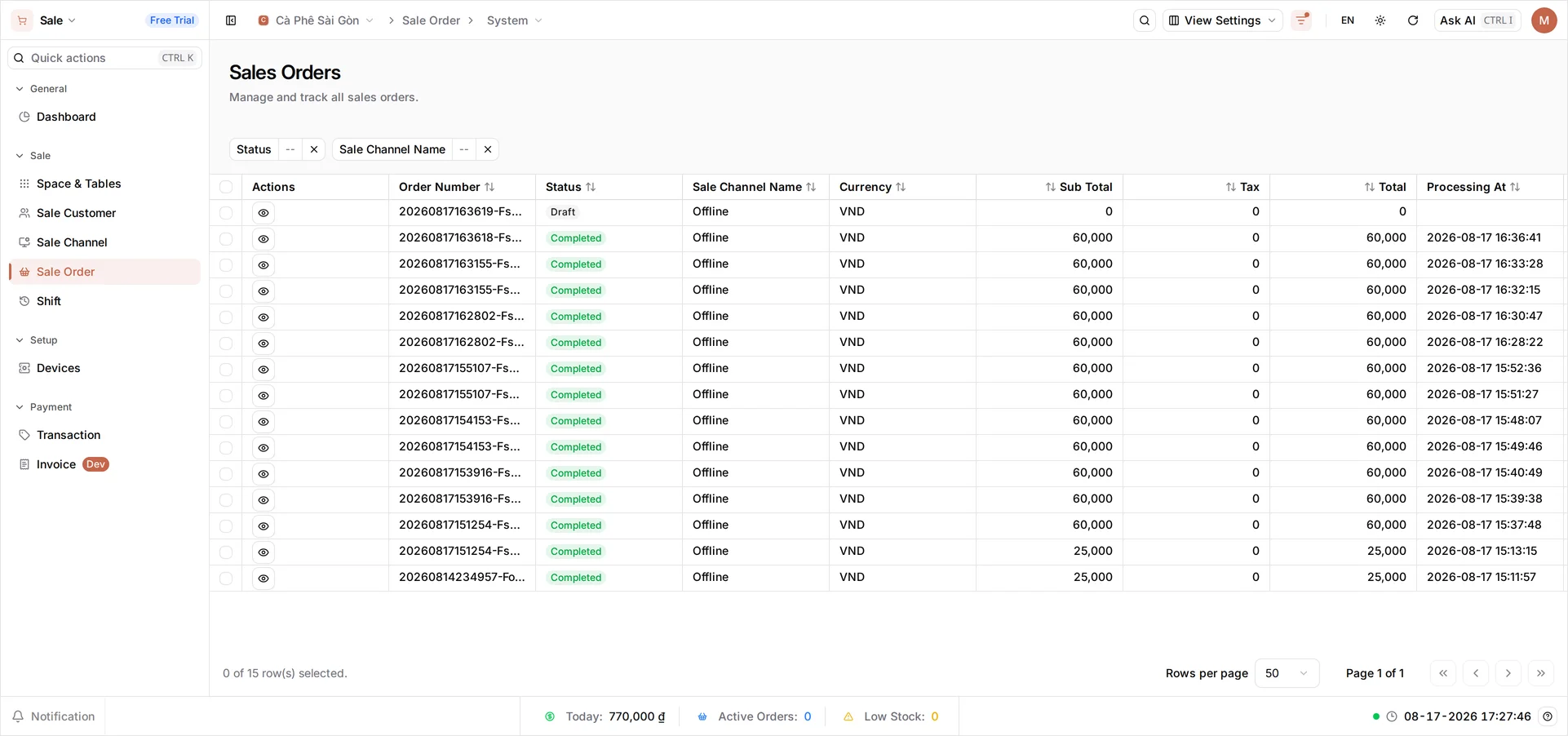
Open Sale from the dashboard, then Sale Order. The page is headed Sales Orders, and every order sits here newest first: Order Number, Status, Sale Channel Name, Currency, Sub Total, Tax, Total and Processing At. View Settings decides which columns you see, so yours may differ.
You don’t need to refresh - orders arrive as the till rings them up, and a figure that changes flashes for a moment so you catch it.
This list has no search box. You find an order by reading, filtering and sorting instead:
- The order number begins with the date and time.
20260817163618-FstC5FeTfEwas opened at 16:36:18 on 17 August 2026. That stamp is the moment the order was started at the till; Processing At is when it was checked out - on a counter sale, seconds later. If the customer can tell you roughly when they paid, read down the column to it. - Two filter chips sit above the table - Status and Sale Channel Name. Each has a small × that clears it again.
- Every column heading sorts, in both directions. Sorting Processing At is the closest thing to a date search, since there is no date filter.
- The foot of the table pages through the list - Rows per page and Page 1 of 1, with first, previous, next and last buttons. This is how you reach last week rather than scrolling.
You can’t search by customer or by amount, and orders don’t carry a customer name on this screen at all.
Each row is badged with a status, and those badges are worth knowing before you open anything - see What the statuses mean.
Open an order
Select the eye in the Actions column. Everything about that order fits one screen:
- The timeline across the top runs Draft → Processing → Completed, each step stamped with the date and time it was reached; a step the order skipped shows
-- /--. A cancelled order shows Draft → Cancelled instead. (The Partial step is temporarily hidden from this timeline while partial payment is not yet re-enabled.) This is the quickest answer to “when did this actually happen”. - Payment information breaks the money down - Sub Total, Discount, Tax and Total. Tax reads 0% when the items sold carry no tax type.
- General Info names the Sale Channel, the Creator - the person who rang it up, which is who to ask what happened - and the Customer, blank when nobody attached one at the till. Modifier stays empty on an ordinary sale. It fills in only if someone sent the order back to the cart at the till and changed what was on it, which is possible while it is still Processing.
- Detail Info lists what was sold: Name, Quantity, Unit price and Total per line. The order keeps its own copy of those prices, so an order from last month still shows what you charged then, whatever the product costs today.
The icon beside the order number copies it in full - useful, since the column truncates it. Transaction detail, top right, jumps to the payment behind the order: which method was used and whether it settled. The back arrow beside the order number returns you to the list.
Sale Channel is where the sale came from, not a connection state. An in-person sale at the counter shows the channel your shop sells through - on the seeded café it’s named Offline, meaning sold in person - while a delivery order shows GrabFood.
The Cancel button in the top bar does not cancel the sale. It closes the order and takes you back to the list. A Completed order gets a separate Void order button next to print - that one does change it: it requires a reason, offers an optional put-the-goods-back-in-stock switch (off by default, only for goods actually back on the shelf), and reverses the receipt and cost of goods once confirmed. The order stays on file with its reason and stops counting toward revenue.
What the statuses mean
| Status | What it means | What to do |
|---|---|---|
| Draft | Started at the till but never checked out - an abandoned cart | Nothing; it never became a sale |
| Processing | Checked out, but no money has been taken against it yet | Chase it - this one is not paid |
| Partial (temporarily hidden from filters and the timeline) | Part of the total has been paid | Open it and select Transaction detail to see how much |
| Completed | Paid in full | This is the one that means the money is in |
| Cancelled | Called off at the till | Open it to see when |
Completed and Cancelled are final for an ordinary sale - a later refund leaves the status and the totals exactly as they are, recorded as its own transaction. The one deliberate way out of Completed is Void order above, and it always carries a reason; an order never drifts out of either status on its own.
If you can’t find an order
- A filter is still on. Status or Sale Channel may be set from earlier - select the × on the chip.
- You’re on a saved view. The screen opens the view you last used, and a view carries its own filters and columns with it.
- It’s a Draft. An abandoned cart never becomes Completed, so it won’t appear under that filter.
- It’s on another page. The list is newest first and pages at 50 rows; anything older than the current page needs the page buttons, or a sort on Processing At.
What this screen can’t do
| To do this | Go here |
|---|---|
| Refund a sale | The BANA Sale app at the till |
| Cancel an order still Processing or Partial | The till |
| Void a Completed order | Right here - the Void order button on the order’s detail screen |
| Reprint a receipt | The till |
| See the day’s totals | Your revenue report |
| Search by order number, customer or amount | Not available - use the date in the order number, the filters, or sort by date |
What’s next
- See your revenue report - the same sales, added up.
- Record income and expenses - the money that never went through the till.
Frequently asked questions
Can I cancel or refund an order from here?
No. This screen only shows you orders - everything that changes one happens at the till. Refunds are made on the BANA Sale app. The Cancel button in the top bar just closes the order and takes you back to the list; it does not cancel the sale.
How do I search for an order number?
You can't - this list has no search box. Read down the Order Number column instead: the number begins with the date and time, so orders sort into the order they happened. Use the Status and Sale Channel Name filters to narrow the list, and the page controls at the foot to reach older days.
What does Partial mean?
Money has been taken against the order, but less than the total - a split payment part-way through, for example. It becomes Completed the moment the amount paid reaches the total.
I refunded an order but it still says Completed.
That's expected. Completed is final: an order never moves out of it, so a refund does not change the status or the totals shown here. The refund shows up as its own transaction - open the order and select Transaction detail.
An order I expected isn't in the list.
Work through the checks in 'If you can't find an order' below - most often a filter chip is still set from earlier, or the sale never got past Draft.