Set up add-ons and FBT
Give an extra away with an item, or suggest a second item at a price you choose - both set up on one variant, in the same dialog a combo uses.
On this page
A combo is a fixed deal: the customer always gets the same things, at one price. Add-ons and FBT - BANA’s label for frequently bought together - are the loose version. An add-on is an extra you hand over for free; an FBT is a second item the till suggests at a price you set, and the customer can say no. Both are set up on one variant, in the dialog a combo also uses, and neither needs a combo to exist.
Before you start
- You are signed in to the dashboard at client.bana.com.vn as the owner.
- The item this guide hangs the extras off is
Bạc xỉu- the café’s Saigon-style iced milk coffee,39,000₫on the menu. - The item you are attaching to has no unfinished orders. BANA refuses to change price or bundle configuration on a variant that is sitting on an open order - Cannot change price or bundler configuration while the variant is in an open order. The dialog will still let you build the rows and the page will look like it saved; the rows are gone on reload. The Unfinished Sale Order Count column in Catalog → Products tells you which products are busy: finish or cancel those orders first, or set the extras up on a quieter item.
- The items you will attach already exist. The pickers only list saved variants. This guide uses
Thêm shot cà phê, a plainĐồ uốngproduct priced at0, andBánh mì thịtfrom Complete your product list.
Decide which of the two you want before you open anything:
| Add-on | FBT (frequently bought together) | |
|---|---|---|
| What it is | An extra handed over with the item | A second item suggested alongside it |
| Price | Always 0 - fixed, cannot be edited | Yours to set, pre-filled with the item’s own price |
| At the till | Listed under the item automatically, free | Offered as a suggestion the cashier taps to add |
| Quantity means | How many come with it | The most the cashier may add |
| Use it for | Extras you are happy to give away | Pairings worth nudging, at a price that earns the nudge |
Note: an add-on is free, and only free - its price field is fixed at zero and greyed out. Anything you want paid for has to be an FBT, including an extra you would normally charge for.
Set up the extras
Open the bundle dialog
Open Products under Catalog, open Bạc xỉu, and go to the variant row the extras belong to. The café pours this one a single way, so it has a single Default row. Select the gear icon in its Actions column.
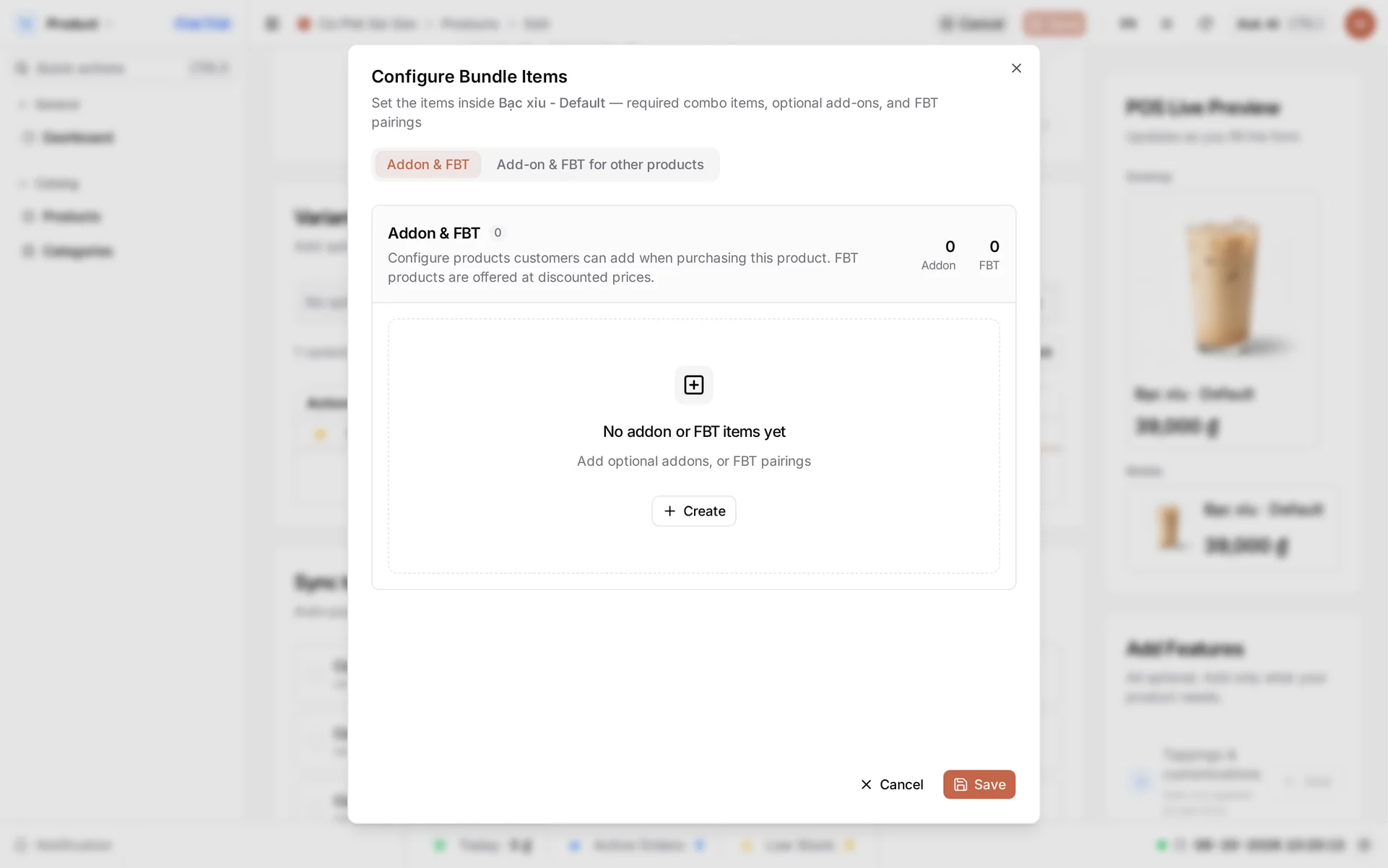
Configure Bundle Items opens on the Addon & FBT tab: Configure products customers can add when purchasing this product. FBT products are offered at discounted prices. The header counts what you have added - Addon 0, FBT 0 - over an empty state reading No addon or FBT items yet.
Not the Toppings card. The product form’s Add Features panel offers Toppings & customizations, described as Add-ons applied at sale time. It is greyed out and does nothing yet - add-ons are configured here, in the bundle dialog.
This is per-variant, not per-product. A drink you sell in three sizes carries three rows, and each row keeps its own list - the medium can hand over an extra shot while the large offers something else entirely.
Add a free extra
The section is empty, so its add button sits in the middle of the panel and reads Create. Select it. Once rows exist the button moves below them and reads Add option - which adds a bundle row, not a product option like a size.
A new row always starts as a blue Addon.
The row has four columns - Variant, QTY, Price and Type.
- Open the Variant cell and choose
Thêm shot cà phê. - Leave QTY at
1- on an add-on this is how many come with the drink.
The Price column beside it shows 0 and is greyed out. That is not a default you can type over: an add-on is free by design. You can point one at an item you normally sell for 15,000₫ and the line still rings up at 0₫ - you are giving that item away. The café created Thêm shot cà phê at 0₫ so the catalog tells the truth about it. An extra you would charge for belongs in the next step instead.
Switch a row to FBT
Select Add option for a second row, then open the type selector at the end of it. Two badges are offered:
- Addon, Optional extras customers can add to a main item.
- FBT, Suggested pairings shown at checkout to boost basket size.
Choose FBT. The teal badge replaces the blue one and the price field becomes editable the moment you switch.
Set the pairing’s price
Open the Variant cell and choose Bánh mì thịt. BANA fills the price with 25,000 - the bánh mì’s own selling price - so an untouched FBT simply offers the item at its normal price and gives the customer no reason to say yes.
Type 20000 over it. That 5,000₫ is what earns the suggestion. You can type any figure here, including one above the item’s normal price, which is how you charge for an extra that the add-on rows will not let you price.
Set QTY deliberately, because it means something different here: it is the most the cashier may add, and the till shows it as a Buy 0/1 chip - none taken yet, one allowed. Leave it at 1 unless you are happy for one customer to take several.
Careful with a free helper product. The dialog calls FBT items offered at discounted prices, but the field takes whatever you enter - leave a
0₫product’s FBT price untouched and you are giving it away.
Select Save in the dialog, then Save in the top bar. Do this now - the next step is optional and easy to wander off from unsaved. The dialog’s own button only closes the dialog; nothing reaches BANA until the page is saved.
If your rows vanish on reload, it is one of two things. Either the page’s own Save was never pressed - the dialog’s button alone saves nothing - or the variant is sitting on an open order, and BANA refused the change - the rows are gone on reload whether or not you caught the error as it went by. Check the second in Catalog → Products: the Unfinished Sale Order Count column shows how many orders still hold that product.
Offer this item on other products
Reopen the gear icon on the same row - the dialog comes back on Addon & FBT - and select the second tab, Add-on & FBT for other products. It runs the same relationship backwards: Select other products to add this product to their add-on or FBT list. Instead of choosing what to offer alongside this coffee, you choose which other items should offer this coffee.
What it attaches is this variant, the one whose gear you opened, not the whole product. Select Create (or Add option, once the tab has a row), pick a Lead Product Variant - the item that will do the offering - then set QTY, the type and, for an FBT, the price. It is how you attach one popular item to many others without opening each of them in turn. Save it the same way as the first tab: Save in the dialog, then Save in the top bar. The lead product you picked must be free of open orders too, for the same reason as the item you started from.
What you created
Bạc xỉu now carries one extra and one suggestion:
| Row | Item | Type | Qty | Price |
|---|---|---|---|---|
| 1 | Thêm shot cà phê | Addon | 1 | 0 - fixed |
| 2 | Bánh mì thịt | FBT | 1 (max) | 20,000 (normally 25,000) |
Back in the variant grid, scroll right to the Bundler column: the row now carries a blue 1 Addon badge and a teal 1 FBT badge - the quickest way to see which variants offer something without opening any of them.
Verify in the bundle dialog
Reopen the gear icon on the Default row. The header reads Addon 1 and FBT 1, with both rows listed below.
Notice what changed: on a saved row the item picker and the type selector are locked. Only quantity and the FBT price stay editable. To swap an item, or to turn an add-on into an FBT, delete the row with its bin icon and add a fresh one.
What’s next
- Fix the pairing into a single menu item instead - create a combo.
- Check the type the product is built on - choose the right product type.
- See how the cashier meets both at the till - sell an add-on or FBT.
You’re all set - a free extra where it costs you little, and a priced nudge where it earns you something.
Frequently asked questions
Can I charge for an add-on?
No. An add-on's price is fixed at zero and the field cannot be edited. If the extra should cost something, add it as an FBT and type the price you want - an FBT price can be higher than the item's normal price, not only lower.
What is the difference between an FBT and a combo?
A combo is one item on the menu that always contains the same things at one price. An FBT is a suggestion the customer can take or leave, and both items stay separate lines on the order.
Why can't I change the item or the type on a row I saved earlier?
Once a row has been saved its item and its type are locked; only the quantity and the FBT price stay editable. To swap the item, delete the row with its bin icon and add a new one.
Do add-ons and FBT apply to a whole product or to one variant?
To one variant. You set them up on a specific row of the variant grid, so the medium coffee can offer different extras than the large.
Does a free add-on still come out of my stock?
Yes. The item behind an add-on is reserved and counted exactly as if it had been sold - you charge nothing for it, but you still gave one away.