Create a sale channel
Set up where Cà Phê Sài Gòn takes orders, so every sale is recorded against the right channel.
On this page
Every order in BANA belongs to a sale channel - the place the order came from. When you set up your store, BANA created a starting set from your business type, so the orders you take in the shop already have a home. Add another whenever you start selling somewhere new, and each sale is recorded against the right channel in your reports.
Do this before you add your products. Every product you create asks which channels it sells on, so having all of them in place first means you pick them once per product instead of going back to edit each one.
Before you start
- A store you have already set up - if you haven’t, see Set up your store.
- The location that fills the new channel’s orders. Cà Phê Sài Gòn fills delivery orders from Default Location.
Add a delivery channel
Cà Phê Sài Gòn is starting delivery through GrabFood, so Minh adds a channel for it alongside the two the café already has. The channel is a label your orders are recorded against - creating it doesn’t connect BANA to GrabFood, so you or your staff still ring up each delivery order and pick this channel on it.
Open your sale channels
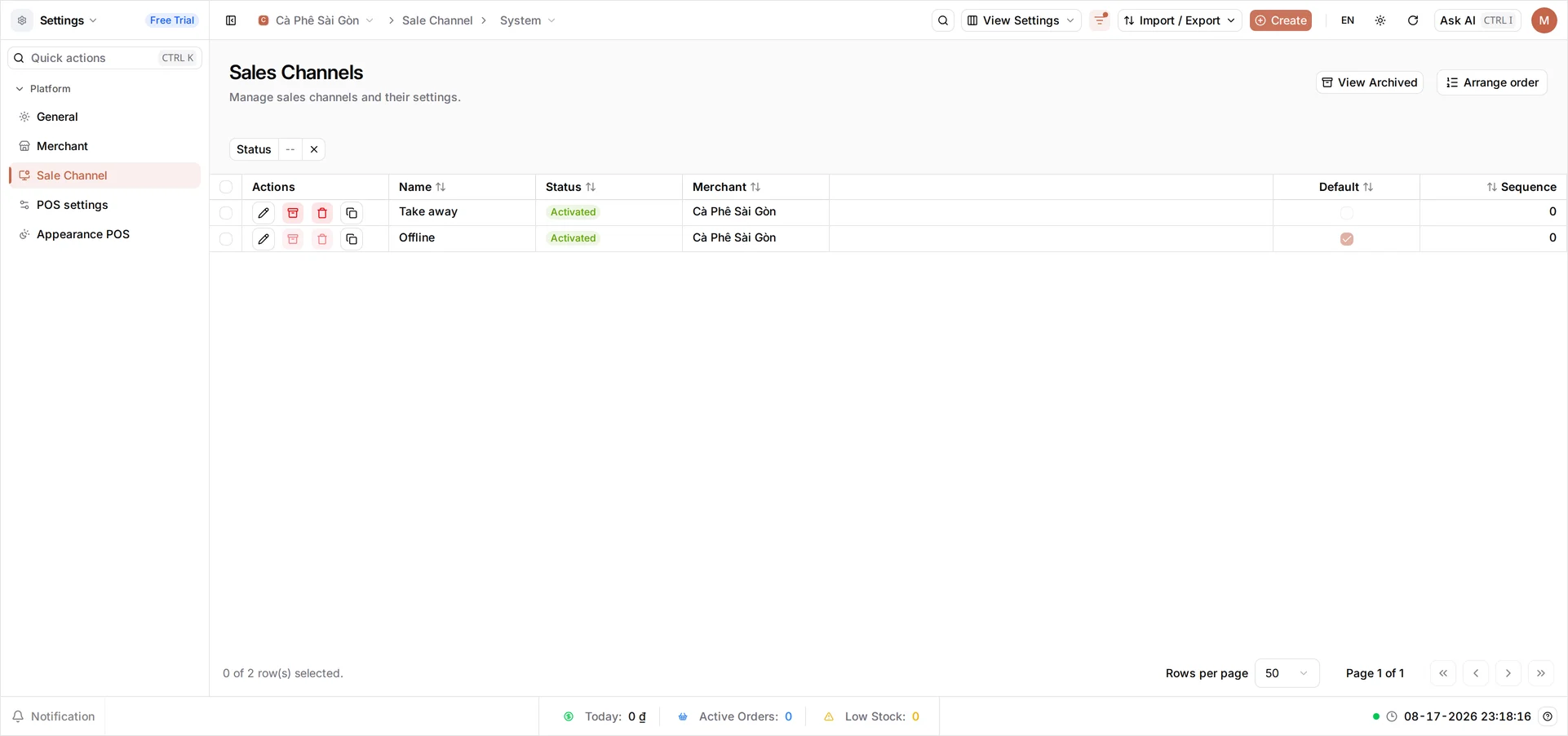
Sign in at client.bana.com.vn and go to Settings > Sale Channel, headed Sales Channels. A food and drink business starts with two channels: Offline for orders served in the shop, and Take away for orders customers carry out. Offline is ticked in the Default column - that’s the channel the POS opens on at the start of each session.
On a phone: the list keeps its desktop columns, so only Actions and Name fit on screen. Scroll the table sideways for Status, Merchant (which store the channel belongs to), and Default - Actions stays pinned as you scroll. Create shrinks to a plus button in the top bar, and the form on the next step fits the screen as it is.
Create a delivery channel
Click Create and fill in the new channel:
- Name - enter
GrabFood. This is the name you’ll see on orders and in reports. The VI and EN buttons store one name per language; the field opens on VI, and a brand name like this is written the same either way, so type it there once and that is the name you’ll see in both. - Status - the form opens on Activated. Leave it there so the channel is ready to use.
- Inventory Location - pick the branch whose stock these orders come out of. A new store has a single one named Default Location; if you have several, choose the branch that will cook and pack the deliveries.
Click Save. Your new channel is added next to the other two.
What you created
Your store now records orders against exactly three channels - the three every F&B business needs:
| Sale channel | Status | Default | Used for |
|---|---|---|---|
| Offline | Activated | Yes | Orders served in the shop |
| Take away | Activated | No | Orders customers carry out |
| GrabFood | Activated | No | Delivery orders, fulfilled from Default Location |
Verify in the sale channel list
Open Settings > Sale Channel to see every channel you have. All three appear with Activated status, ready to be picked when an order comes in, and Offline keeps the tick in the Default column. To change a channel later, open it again with the pencil icon in its Actions column; that column also holds archive and delete, both greyed out on the channel marked Default - the default channel can be neither archived nor deleted.
What’s next
Your channels are ready, so now you can add the products that sell on them. Each product you create from here picks its channels from these three.
- Organize your products with categories - group your products before you add them
- Add your first product - where you pick these channels for the first time
Frequently asked questions
Which channels do I start with?
BANA creates them from your business type when you set up your store. A food and drink business starts with Offline and Take away; a retail business starts with Counter and Online. You only add a channel when you start selling somewhere new.
What does the Default column mean, and can I move it?
It marks the channel the POS opens on at the start of each session; a cashier can still switch channels on an order. To move it, open the channel you want with the pencil icon in its Actions column and turn on Default Sale Channel, then Save - the current default holds the tick until another channel takes it.
What does the inventory location on a channel do?
It tells BANA which branch's stock an order on that channel draws from, so your counts stay accurate. The list does not show it - open a channel with the pencil icon to check or change which location it uses.
Can I turn a sale channel off later?
Yes. Open the channel with the pencil icon and set its Status to Deactivated. Past orders keep their channel, but no new orders can be placed on it until you set the Status back to Activated.