Manage employees and roles
Add your staff, give each one the right access, get them signed in, and change or end that access when things move on.
On this page
You’ve been open a week, and running the counter alone is wearing thin. Bringing your team onto BANA gives each person their own sign-in, and a role decides what they see once they’re in - so your cashier rings up sales without opening your books. Cà Phê Sài Gòn is adding Hùng Phạm behind the till and Lan Trần to run the floor.
Before you start
- You’re signed in to the dashboard at client.bana.com.vn as the owner.
- You have an email address for each person - that is all an invitation needs. They choose their own username and password through the link BANA sends, and fill in their name afterwards.
- Everything lives under Team in the dashboard: Employee for people, Role for what they’re allowed to do.
Add someone to your team
Add your first team member
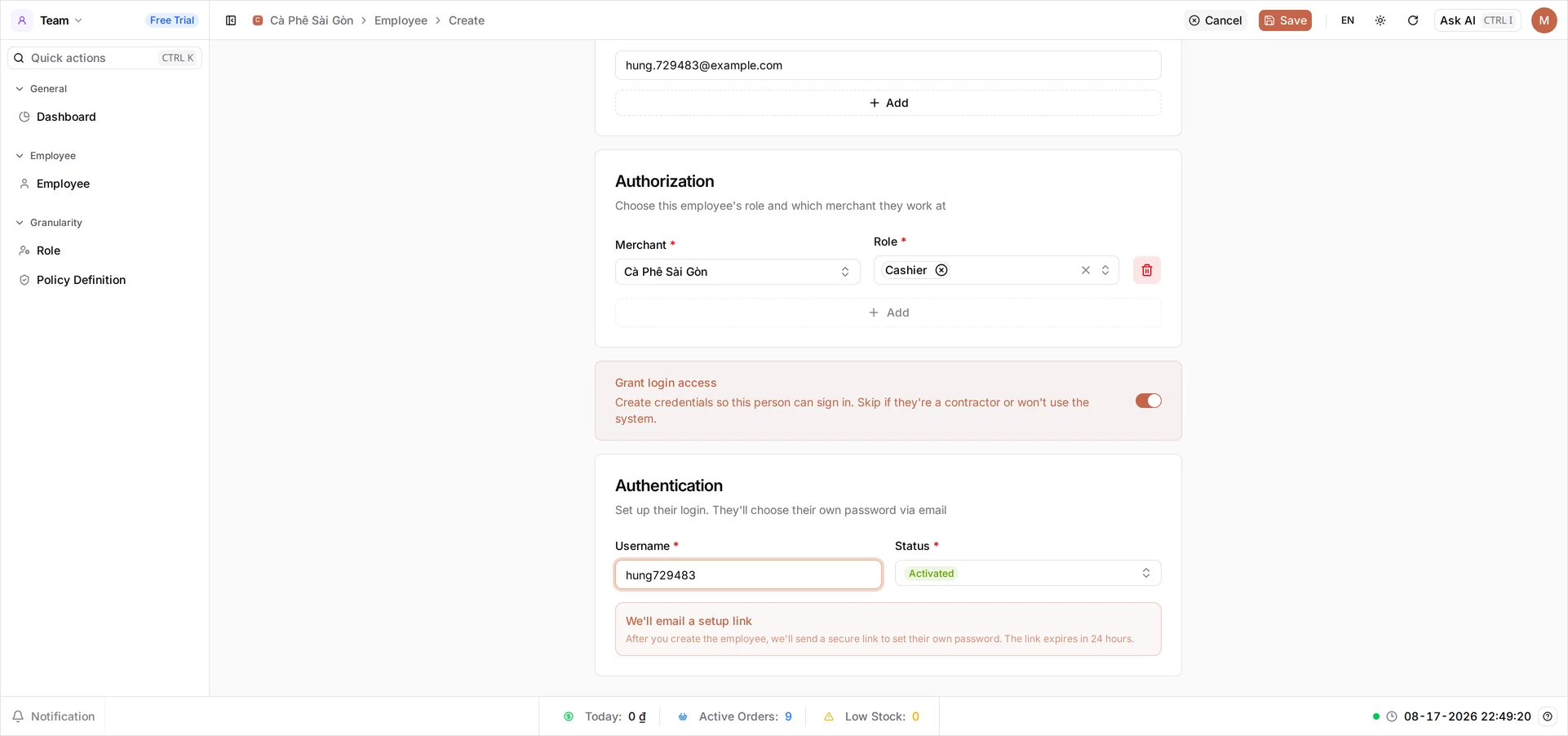
Open Team → Employee and select Invite. The Create New Employee form asks for three things: a Start Date, an Email - where the invitation goes - and, under Authorization, the Merchant they work at and their Role. Hùng works the till, so Cashier - one of the roles your shop already has - is exactly right. There is no name, username or password field: Hùng picks the last two when he accepts the invitation, and his name goes on his own profile, or on the employee record when you open it later.
The blue panel at the bottom of the form says the one thing that matters: We’ll send a setup link by email, and that link expires in 5 minutes. So select Save while Hùng has his phone in hand - resending is possible, but not having to is better.
Tip: Someone you want on the books but not in the system - a contractor, say - is invited like anyone else; then open their record and turn Grant login access off. That switch lives on an existing record, not on the invitation. They keep a staff record and lose the sign-in.
See the roles you already have
Lan needs more than a cashier does, so before adding her, look at what’s on offer: open Team → Role. Your shop starts with three roles BANA provides - Cashier for counter staff, Employee as a low-access starting point, and Manager above them - each Activated and badged System role, which means they’re built in rather than yours.
If one of these fits the job you’re hiring for, you’re done: go back to Employee, add the person, and pick it. Only when none of them fits do you need the next step.
Build a role when none of them fits
Select Create. Give the role a Name (Store manager), leave Status as Activated, and pick a Priority - Medium is right for a manager, since it decides which other roles this one can manage. Merchant is filled in with the store you are standing in and cannot be changed. At the headquarter you also get Where does this role apply? with two choices: Every merchant in the organization - including branches opened later, so someone who runs the whole chain is invited once, at head office - or This merchant, and the branches I pick, with an Also available at checkbox list. Lan looks after both of Cà Phê Sài Gòn’s stores, so she takes the first.
The Policy Definition panel on the right is where you decide what the role can reach. Rather than ticking hundreds of actions, start from a Preset - Read-only, Editor or Full access - and adjust. Editor suits a store manager. Each module (Commerce, Inventory, Sale, Finance and the rest) has its own Read, Write and Manage chips, so you can pull back whatever the job shouldn’t touch, and the running count above the list tells you how many actions you’ve allowed. Select Save, then add Lan the same way you added Hùng, choosing Store manager as her role.
Tip: Build roles around jobs, not people. When someone changes position you switch their role instead of unpicking permissions one by one.
Get them working
Check who has access
While you wait, both invitations sit under Invitation, right beside Employee, with the status Awaiting response. Each row offers Resend for when the link has passed its 5 minutes, and Cancel for when you invited the wrong person.
On Hùng’s side, the email opens Set up your account: he chooses a Username - 4 to 32 characters, lowercase letters, digits, dots, underscores or hyphens - then a Password, confirms it, and selects Create account. From that moment the invitation leaves Invitation, and Hùng appears under Employee with the Username he just chose, his email, his Role and a Status of Activated. You never see or set their password.
Once they’ve set it, they sign in at client.bana.com.vn for the dashboard, or the BANA Sale app at sale.bana.com.vn for the till, with the same credentials.
Change or end someone’s access
Select a person from the list to open their record - this is where everything after day one happens:
- Change what they can do - swap the Role under Authorization, or add a second one.
- They forgot their password - Reset Password under Security emails them a fresh link. Their old password stops working immediately.
- They’ve left - set Status to Deactivated to switch off their sign-in while keeping the record, or Archive to take them off your team list for good. BANA asks you to confirm archiving, because it can’t be undone.
What you set up
| Employee | Role | Can reach |
|---|---|---|
| Hùng Phạm | Cashier | The POS, to ring up sales |
| Lan Trần | Store manager | Products, inventory and orders |
Both sign in with their own username and a password only they know.
What’s next
- Track stock and locations - the part of the shop Lan now runs.
- Update business details
Frequently asked questions
Do I need to create a role before adding someone?
Usually not. Your shop starts with built-in roles, and Cashier already fits most counter staff. Build your own only when none of them matches the job.
How does my new employee get their password?
You never set one. When you save the record, BANA emails them a link to choose their own password, and the link expires in 24 hours. If it runs out or they forget it later, open their record and select Reset Password.
Can I add someone without giving them a login?
Yes. Turn Grant login access off and you get a staff record with no sign-in - useful for someone on the books who never touches the system. Turn it on for anyone who works the POS or the dashboard.
Can one person have more than one role?
Yes. The Role box holds several at once, and their access is the combination of all of them. There is no way to subtract a permission a role grants, so build the role to fit rather than stacking and hoping.