Set up the till and printer
Register your till as a device, activate it with a code, then connect a receipt printer so you can start selling.
On this page
Your products are in, but the counter isn’t ready yet. BANA won’t let a computer take money until you’ve told it that computer is yours: you register the till as a device, and pair it with a one-time code. Then you connect the printer, and you’re open.
Before you start
- Your products added - see Complete your product list.
- The computer you’ll actually sell from, with the browser you’ll use at the counter.
- A receipt printer, if you have one - plugged into that computer, or reachable from it. You can finish this article without one and add it later.
Register the till and activate it
Do this once for each computer you sell from. Activation is remembered per browser and per store, so a second till at the same counter needs its own device and its own code.
Register your till as a device
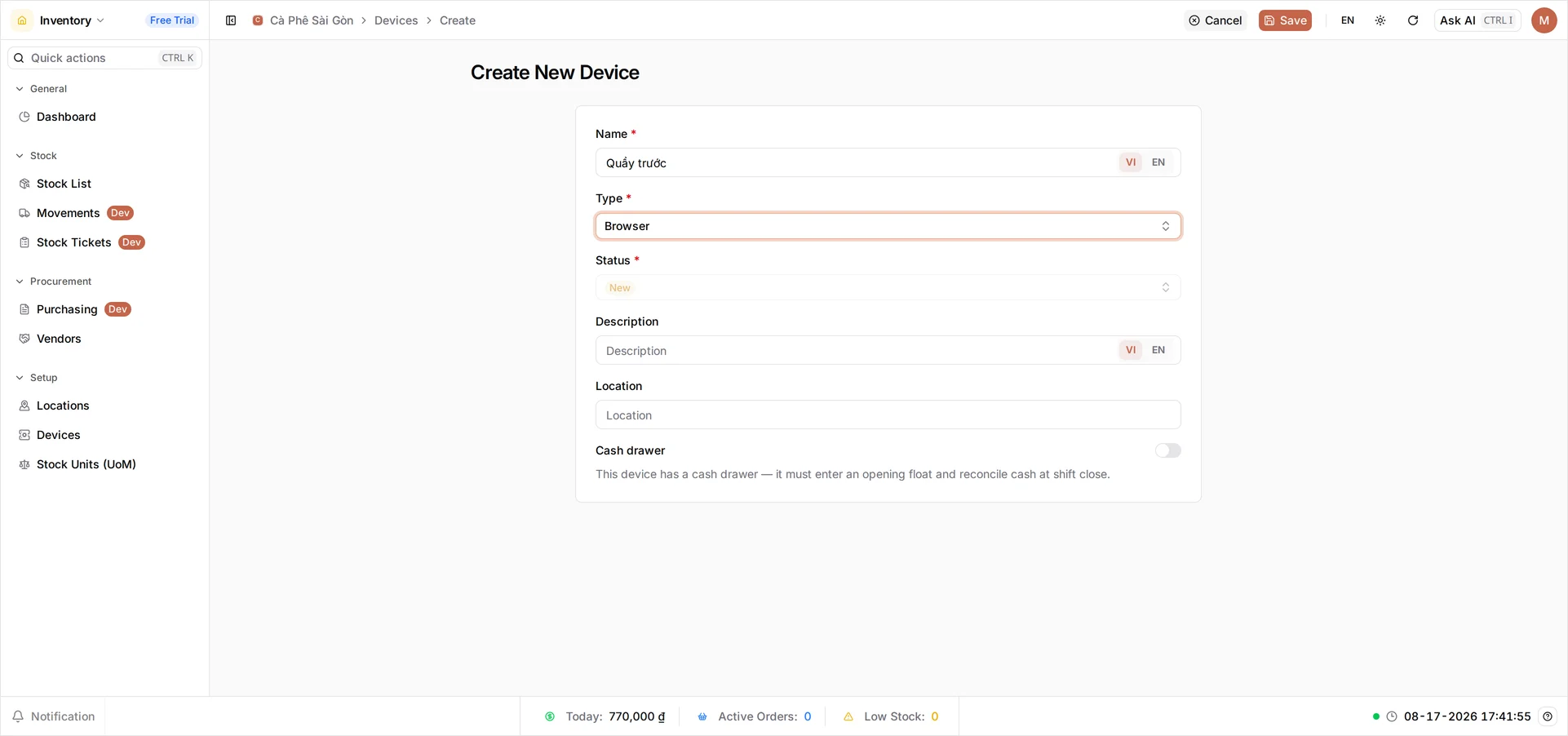
This first part is dashboard work - do it on any computer. Sign in at client.bana.com.vn, open Inventory in the sidebar, and go to Setup → Devices. Select Create in the top bar, then:
- In Name, say where it sits -
Quầy trước(Front counter). - In Type, choose Browser. This is the one that matters: Browser is what tells BANA a web POS will sign in here, and it’s the only type that produces an activation code.
- Status fills itself in as New and stays greyed out - that’s correct. It flips to Activated by itself once the till pairs.
- Leave Description and Location empty unless they help you tell two tills apart. Switch Cash drawer on only if this till has one: it then has to enter an opening float and reconcile the cash when the shift closes.
- Select Save.
Tip: Name devices for where they live - Front counter, Bar, Kitchen. Once you have several tills and printers, clear names save a lot of confusion.
Copy the activation code
Saving returns you to Inventory → Setup → Devices. Open the device you just created with the pencil in its Actions column - a Device activation code panel appears beside the form, with a QR code, the code in full, and the time it Expires.
The code is six characters. If you are already at the till, scan the QR or select the code to copy it. If you are on a back-office computer, just read the six characters off the screen - you’ll type them at the till in a moment, and a clipboard doesn’t travel between machines.
Warning: The code works once, and only for a short while - the panel shows the exact expiry time, so have the till in front of you before you fetch it. If it expires before you get there, select Generate new code on the same panel.
Activate the POS
Now move to the computer at the counter. Open BANA Sale at sale.bana.com.vn and sign in with the same account you use for the dashboard. Instead of the sale screen you’ll get Activate device - every browser meets this once.
Type or paste the code into Activation code and select Activate. The sale screen opens, and this browser goes straight there from now on - for your staff too, whichever account they sign in with. Back in the dashboard the device now reads Activated, and its code panel is gone.
Rather not register the device in the dashboard first? The screen’s Activation method has a second option, Link via QR: the till shows a QR code and a link, an approver opens that link on their phone - scan the code or tap Open link - gives the device a Device name and selects Approve. The till reads Waiting for approval… meanwhile, then opens the sale screen on its own; the device is created at approval, so the first two steps of this guide are skipped. The link lives only a few minutes - once it expires, select Create new request.
Connect your printer
Connect a receipt printer
Still on the till, in BANA Sale, open Settings and choose Printer. The Printer Settings page has three tabs - Receipt, Kitchen (KDS) and Label - and each is its own printer with its own setup, so the counter and the kitchen no longer fight over one machine. This guide sets up Receipt; the other two work the same way once you have a kitchen or label printer.
- Under Printer type, say how this till prints. USB printer is a receipt printer plugged into this computer. Browser print hands the receipt to your browser’s own print dialog - it needs no special hardware, so use it if your receipt printer hasn’t arrived yet.
- Under Paper width, pick the roll this printer takes - 58mm or 80mm, the two common receipt rolls and the only two choices here. Get it wrong and receipts print cramped or with a wasted margin.
- For a USB printer, pick it under Select device. If the list says No devices found, check the printer is on and plugged in, then select Refresh Printers.
- Select Connect printer - it stays greyed out until a printer type and device are chosen - to run a test connection, then scroll down to the receipt preview to see exactly what your customer will be handed.
On the installed app: the BANA Sale desktop app reaches hardware through the computer it runs on, so under Printer type it offers Network printer (over Wi-Fi or Ethernet, with an IP address and port to enter if the printer does not appear on its own) in place of Browser print; a Sunmi Android till adds Sunmi built-in printer.
Troubleshooting
- No activation code on the device - the panel needs Type: Browser and a status of New. If you picked the wrong Type, open the device and change it while it is still New. If the Type field is greyed out, register a fresh device instead; an unused one does no harm.
- “Please enter the activation code” - the field was empty. Type the six characters exactly, with no spaces.
- The code is rejected - it has expired, or it has already paired a till. On a device still marked New, select Generate new code. On one already Activated, register a new device for this computer.
- Printer offline - check power and network, then reconnect from Settings → Printer Settings.
What’s next
Frequently asked questions
Do I really have to do this before I can sell?
Yes. The BANA Sale app will not open its sale screen until the browser you are selling from has been activated. Registering the device and entering its code is what unlocks it.
I have two computers at the counter. Do I do this twice?
Yes. Activation is remembered per browser and per store, so each computer needs its own device and its own code. It is a one-off for each one.
The code stopped working. What happened?
Each code works once and then expires. If it expired before you paired the till, reopen that device and select Generate new code. If it already paired a computer, that device is Activated and has no code panel any more - register a new device for the new computer.
My printer doesn't appear in the list. What do I check?
Make sure it's powered on and on the same network as the computer running the POS, then select Refresh Printers. Most no-show printers are a network or power issue.
Can one shop have several printers?
Yes. Register each one with a clear name - Front counter, Bar, Kitchen - so staff always pick the right one when printing.