Update business details
Keep your logo, business name, tax code and address accurate so they appear correctly on receipts and e-invoices.
On this page
Your store’s logo, name, tax code and address print on every receipt and VAT e-invoice and feed into your reports - so they’re worth keeping accurate. This guide shows where to manage them, and how the Check button fills most of the address in for you.
These are your business details, which is not the same as your personal login. Your own name and password live in your profile; this page is about how the shop itself appears to customers.
Before you start
- Owner or manager access to the store - only those roles can edit business details.
- Your registered business name, tax code and address - a 10-digit code, or a branch code with its three-digit suffix. With the tax code, BANA can fill in the rest for you.
- A square image for your logo, if you have one - PNG or JPEG under 10 MB, around 400×400.
Open your business details
Open Settings → General
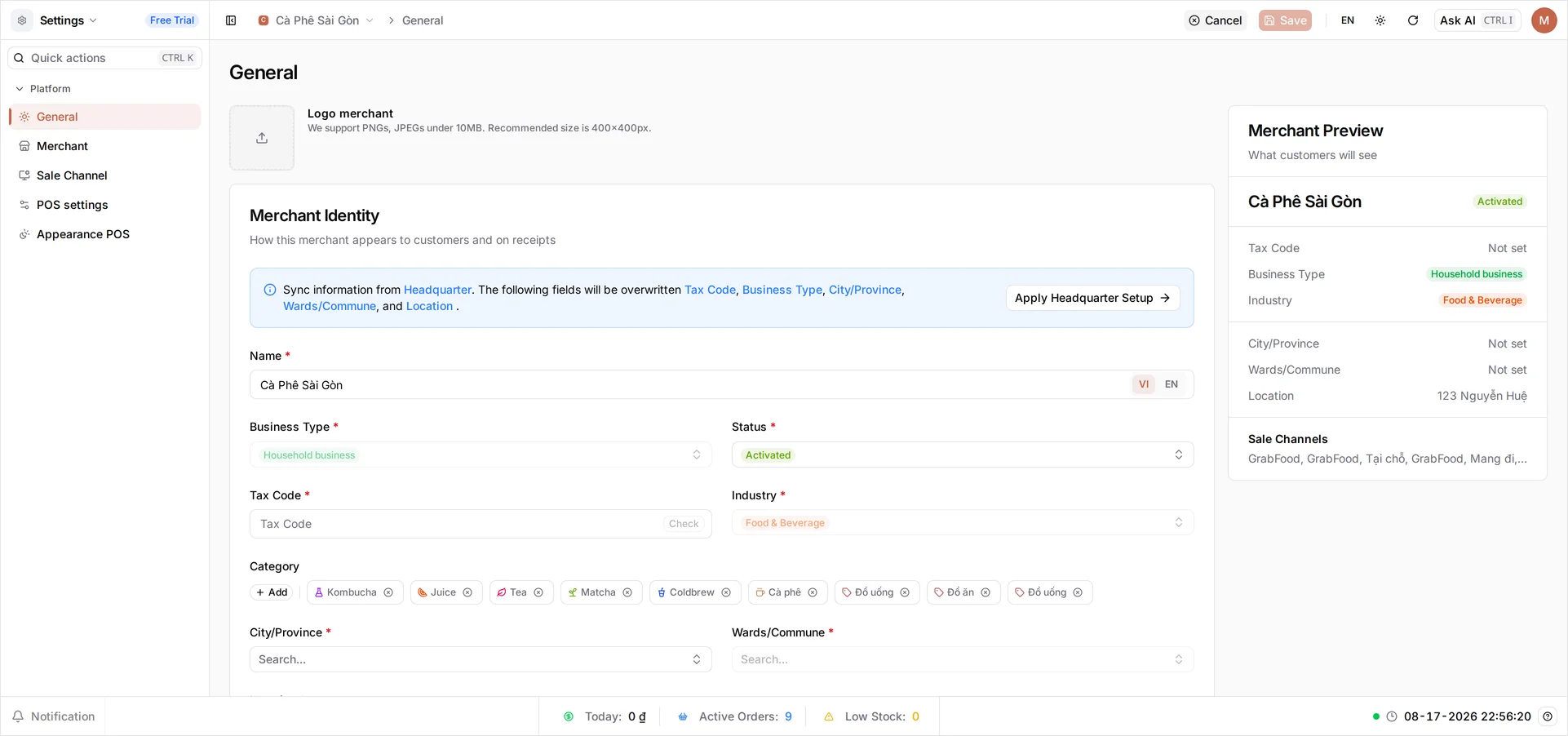
Sign in at client.bana.com.vn and select your store. Open Settings, then General. Everything on this page describes the shop: the Logo merchant tile at the top, the Merchant Identity card - “how this merchant appears to customers and on receipts”.
On the right, a live Merchant Preview panel mirrors what a customer sees, with Not set beside anything you haven’t filled in yet - and your sale channels listed at the foot of it. Watch it fill in as you work.
Category sits between Industry and the address, already holding a chip per category your shop was set up with. Each chip has an ×, and + Add puts another on. It describes the business, not your product list - changing it here does not touch the categories your products are filed under.
Update the details
Decide this first, if a blue panel is showing. A panel headed “Sync information from Headquarter” sits at the top of the identity card, with an Apply Headquarter Setup button in it. It says plainly which fields it will overwrite - Tax Code, Business Type, City/Province, Wards/Commune and Location - and it means it, so press it before you fill anything in, or not at all if this store is registered separately from head office. It sets Business Type even though you cannot edit that field by hand here. And if head office is itself missing any of the five, BANA copies nothing at all and says so in a dialog headed Headquarter setup is incomplete - so check the fields afterwards rather than assuming they filled.
Add your logo
Select the logo tile and choose your image. It appears in the tile immediately, with Replace logo beside it if you want to swap it later and a trash icon to clear it - but that is a preview, not an upload. The logo goes up with everything else when you press Save, so a logo you picked and never saved is a logo you do not have. The logo is optional, but it is what customers see at the top of a receipt, so it is worth adding while you are here.
Set your tax code, then your name
Start with Tax Code, which is required. Enter your code (0312987656) and select Check, the small button inside the field. BANA looks the code up with the tax authority and fills in your registered name and address, overwriting whatever is in those fields - which is exactly why it goes first.
A 10-digit code is the usual case; a branch code with its three-digit suffix (0312987656-001) is accepted too. If the lookup returns only part of the address, BANA says so and you finish the rest by hand.
Check only fills the form in - it stores nothing. Everything it found is still just typed into the page until you press Save. You can skip it entirely and type the details yourself; Tax Code is required either way.
Tip: Get this right before you start issuing e-invoices. You can change the tax code here whenever you like, but not on an invoice that has already been issued.
Now check Name. The lookup may have filled it with your registered name; make sure it reads the way you want customers to see it, or type it yourself (Cà Phê Sài Gòn). The field holds a Vietnamese and an English version - use the language switcher inside the field to move between them.
Fill in the Vietnamese one. It is the required half, and it is also the one BANA falls back to everywhere the English half is blank - so a name typed only into EN leaves your Vietnamese receipts still reading Trụ sở chính, the placeholder every new store starts with, even though the form saved without complaint. Set Vietnamese first, then add English if you want it.
Business Type and Industry sit alongside, greyed out: both were fixed when the store was created and there is no way to change them afterwards - a store registered under the wrong one has to be replaced rather than corrected. Status shows whether the store is trading and is not something you set here. Logo, name, tax code and address are the ones you can change on this page, whenever they change.
Add your address and save
Choose your City/Province, then your Wards/Commune - the ward list only wakes up once a city is chosen - and type the street address in Location (123 Nguyễn Huệ). All three are required, so if Check filled them in, just confirm they’re right.
Glance at the Merchant Preview: it now shows your logo, name, tax code, industry and address exactly as customers meet them. Then select Save in the top bar. Save stays greyed out until you change something, and once you have, it only goes through when the five required fields are filled - anything missing is flagged on the field itself, so if the click seems to do nothing, scroll the form for a field marked in red.
Then reload the page and read the fields back. It is the one check worth making, because a save that does not fully land looks exactly like one that did: no error, no warning, and a Merchant Preview still showing what you typed. If Tax Code, City/Province or Wards/Commune come back empty after the reload, they did not save - enter them again, and if they still will not stick, contact support before you issue an invoice against them.
Once the details are back after a reload, they are live: the dashboard and the BANA Sale app at sale.bana.com.vn pick them up, so the next receipt carries the new details. A till that is already open reads them when it next starts, so have a cashier reopen the app if you want it immediately. Receipts and invoices you have already issued keep the details they had at the time - nothing you do here rewrites history.
Troubleshooting
- Receipts still say “Headquarter”: you haven’t renamed the store yet. Set Name (the Vietnamese one) to your business name and select Save.
- Save is greyed out: nothing on the form has changed yet. It activates on your first edit.
- The Check button does nothing: enter the tax code first - it stays disabled while the field is empty.
- Tax code won’t validate: it must be a real Vietnamese tax code, not just any ten digits - the tenth digit is a check digit calculated from the other nine, so a typo anywhere in the code fails it. Branch codes ending
-001are fine; only the 10-digit part is checked. If you are sure your code is right and it is still refused, contact support rather than inventing one that passes - Tax Code is required, so nothing else on this page can be saved until it is accepted. - The lookup finds nothing: the code still has to be there, since Tax Code is required. Leave it in the field and type the name and address by hand.
- Wards/Commune is greyed out: pick a City/Province first; the ward list is filtered by it.
- Save seems to do nothing, or the details are blank again after a reload: either a required field is still empty (the page marks it in red) or the save did not fully land. Re-enter the fields and save again, then reload to confirm - until they survive a reload they are not stored, so do not issue invoices against them.
- I picked a logo and it disappeared: it was only ever a preview. Choosing an image does not upload it; it goes up when you press Save.
What’s next
Your business identity is set. Next, bring your team on board.
Frequently asked questions
Can I change my industry or business type later?
No. Industry and Business Type are set when the store is created and are greyed out here afterwards. Everything else - logo, name, tax code and address - you can update whenever you need to.
What is the difference between my business details and my profile?
Business details are your shop's public identity - the logo, name, tax code and address customers see on receipts. Your profile is your personal login: your own name and password. They are managed separately.
Which fields must I fill in before I can save?
Name in Vietnamese, Tax Code, City/Province, Wards/Commune and Location are all required. The English name and the logo are optional, and Save stays greyed out until you have actually changed something.
Will updating my business name change receipts I already issued?
No. Changes apply to new receipts and invoices from the moment you save. Documents already issued keep the details they had at the time.