Set up options and variants
Configure a café drink that varies two ways, give each variant its own price, and turn off a combination you don't sell.
On this page
The same drink often comes more than one way - a coffee in several sizes, served hot or iced. BANA captures that with options (the attributes a product varies by) and variants (each combination you actually sell). Add your first product built Cà phê Latte out of three options and priced every combination. This guide sets up Cà Phê Sài Gòn’s Cà phê sữa - a separate menu item from the iced-only Cà phê sữa đá - and covers the part that article did not need: a combination the café doesn’t make at all, and what to do with it.
Before you start
- You’re signed in to the dashboard at client.bana.com.vn as the owner.
- The combinations and their prices ready to hand - for
Cà phê sữa: SizeS,M,L× Pha chế (serving)Nóng(hot),Đá(iced). The café doesn’t make a large hot, soL · Nóngwon’t be sold. - New to the product form itself? Add your first product covers the basics - this guide focuses on the Variants section.
Note: Options multiply - each value you add expands the whole matrix, so keep options to the ways the drink truly differs. And for a combination you don’t make, set its Status to Deactivated instead of deleting it.
Set up the variants
Open the Variants section
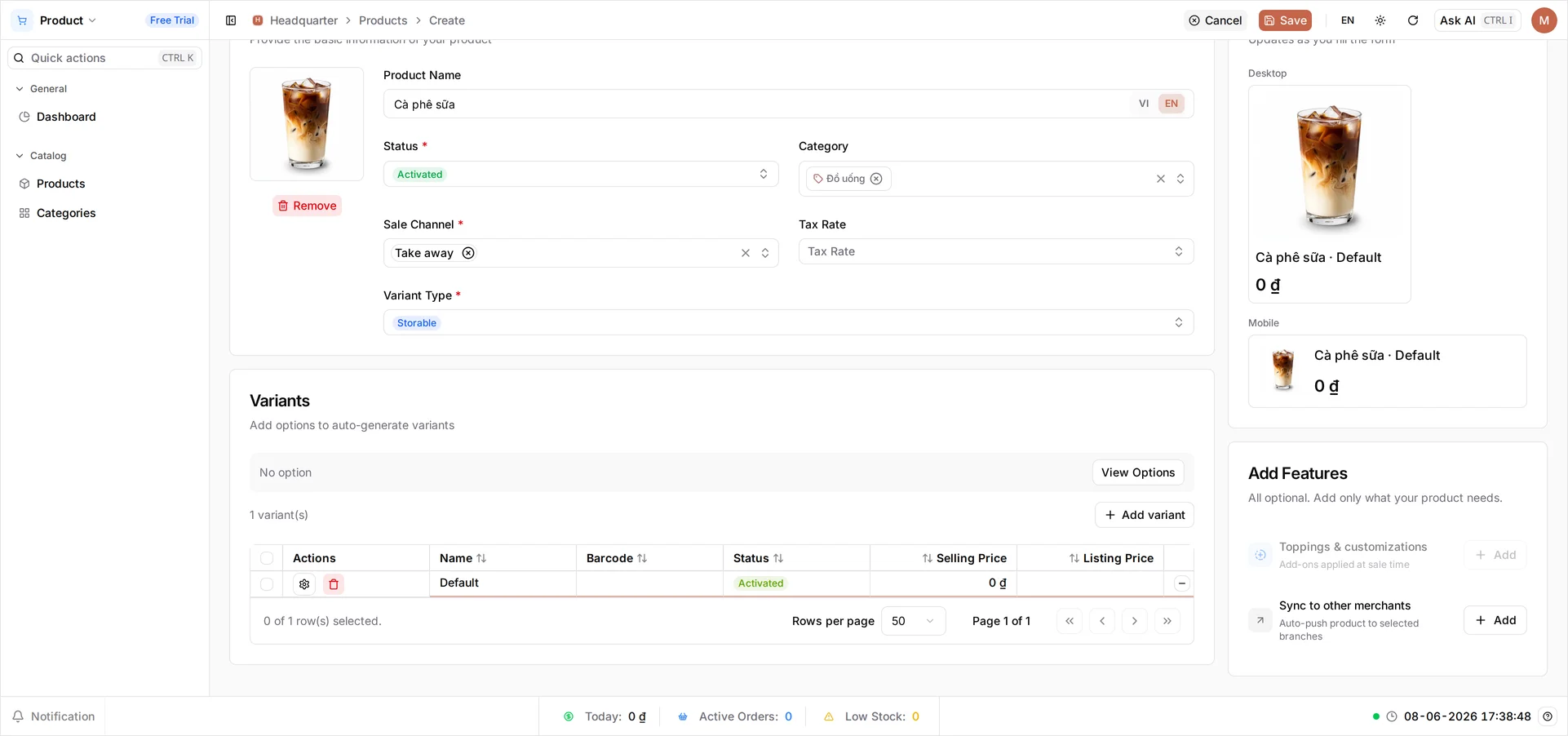
On the Create Product page for Cà phê sữa (Category Đồ uống), scroll to Variants - Add options to auto-generate variants. The section starts collapsed: a summary row reading No option, a View Options button, and one placeholder row named Default in the grid below. Select View Options to open the option editor. You describe the options here and BANA builds the variants, replacing that placeholder.
Define your two options
Add one option per attribute the drink varies by:
- Select Add option. Option 1 appears - name it
Size. Like Product Name, this field carries a VI / EN toggle, and the Vietnamese side is the one that has to be filled. Leave it empty and Save is refused later, with the field marked Option Name (VI) is required. - Inside the Option 1 card, select the small Add button - not Add option, which starts a second option. Type
Sand pressEnter, then repeat forMandL. Each value becomes a chip you can remove with its x. - Select Add option again for Option 2, name it
Pha chế(serving), and addNóng(hot) andĐá(iced) the same way.
Auto-preview now reads 6 variant(s) will be generated · S, M, L · Nóng, Đá, with the arithmetic underneath: 3 × 2 = 6 combination(s).
Generate the variants
Select Generate 6 Variants - the button counts the combinations for you. BANA asks Re-generate variants? and lists what will change: +6 new variant(s) and −1 row(s) will be removed, the Default placeholder. Confirm with Apply changes.
The section now reads 6 variant(s), one row per combination - S · Nóng, S · Đá, M · Nóng, M · Đá, L · Nóng, L · Đá - each Activated and starting at 0 ₫. Every row is a real item the cashier rings up on its own, which is why the next step prices them individually.
Price each variant you sell
Every variant carries its own Selling Price, so they don’t all cost the same. Select each row’s Selling Price cell, type the price, and press Enter:
| Variant | Selling Price |
|---|---|
| S · Nóng | 25000 |
| S · Đá | 27000 |
| M · Nóng | 29000 |
| M · Đá | 35000 |
| L · Đá | 39000 |
Leave L · Nóng at 0 - the next step takes it off the menu. The POS Live Preview picks up the first variant’s price as you go.
On a phone: this page keeps its wide desktop layout on small screens, which squeezes the Variants grid down to its Actions column - no way to reach Selling Price, Status or Allow Oversell. Set your variants up on a computer.
Turn off a combination you don’t sell
The café doesn’t make a large hot coffee, so it shouldn’t appear on the POS. On the L · Nóng row, select the Status cell and choose Deactivated from the four values - Draft, Activated, Deactivated, Archive. The variant stays in the matrix and keeps its history, but the cashier is never offered a drink you can’t make, and you can switch it back to Activated any time.
Let the POS sell without a stock count
The grid carries more columns than fit on screen. Scroll it sideways, past Listing Price, Stock and Cost, until Allow Oversell comes into view - the Name column stays pinned on the left so you can still tell the rows apart. Tick it on the five variants you sell; L · Nóng doesn’t need it, it’s switched off.
Coffee is made to order, so you never count it. But every variant is saved with a stock of 0, and the POS won’t sell something it believes it has none of. Allow Oversell switches that check off for these variants, so you can start selling today.
Select Save in the top bar.
Tip: Get each variant’s price right before you save. Once the product exists, a variant row only lets you change its Name, Status and Listing Price - Selling Price is set at creation.
What you created
Cà phê sữa now sells as five priced variants, with the one combination you don’t make switched off:
| Variant | Price (VND) | Status |
|---|---|---|
| S · Nóng | 25,000 | Activated |
| S · Đá | 27,000 | Activated |
| M · Nóng | 29,000 | Activated |
| M · Đá | 35,000 | Activated |
| L · Nóng | 0 | Deactivated |
| L · Đá | 39,000 | Activated |
Verify in the product list
Open Catalog → Products to find Cà phê sữa with Activated status in the Đồ uống category, and Variant Count reading 6. (Out of Stock counts it too - that’s the stock of 0 on a made-to-order drink, which is exactly what Allow Oversell is for.) Open the product to confirm each variant carries its price and that L · Nóng reads Deactivated - at checkout the cashier picks the exact size and serving, and only the ones you actually make.
What’s next
- Round out the list - complete your product list.
- Put a variant drink through a real sale - make your first sale.
You’re all set - one drink, every size and serving, each priced on its own and only the ones you make on the POS.
Frequently asked questions
What's the difference between an option and a variant?
An option is an attribute the product varies by, like Size or how it's served. A variant is one specific combination you actually sell and price, like M served iced. You add options, and BANA turns their combinations into variants.
Can each variant have its own price?
Yes. Every variant has its own Selling Price, so a large costs more than a small and an iced drink can differ from a hot one. Set it on each row before you save - once the product exists, a variant row only lets you change its Name, Status and Listing Price.
How do I stop selling just one combination?
Set that variant's Status to Deactivated. It stays in the matrix and keeps its history, but it disappears from the POS - so the cashier is never offered a combination you can't make. You can switch it back on any time.
Why did adding a second option create so many variants?
BANA multiplies the values together. Three sizes and two ways of serving make 3 × 2 = 6 variants, because each size exists in each form. Every combination is its own sellable item.
What happened to the Default row that was there before I generated?
It was a placeholder, and generating replaces it. The confirmation dialog says so up front: it counts the new variants it will add and the placeholder row it will remove.