Set up payment methods
Before you open, check the ways you can already accept money and add the ones you're missing, using finance accounts.
On this page
The till is nearly ready. You’ve built out the menu - now make sure your store can accept the ways customers will actually pay. BANA doesn’t have a dedicated “turn payment methods on or off” screen: each way of getting paid is a finance account, and any account that’s active automatically becomes a button at the till on POS.
Before you start
- Your store is already set up - if not, see Set up your store.
- Decide what you accept. Cà Phê Sài Gòn takes cash, bank transfer, and QR.
Check your payment methods
See the payment methods you already have
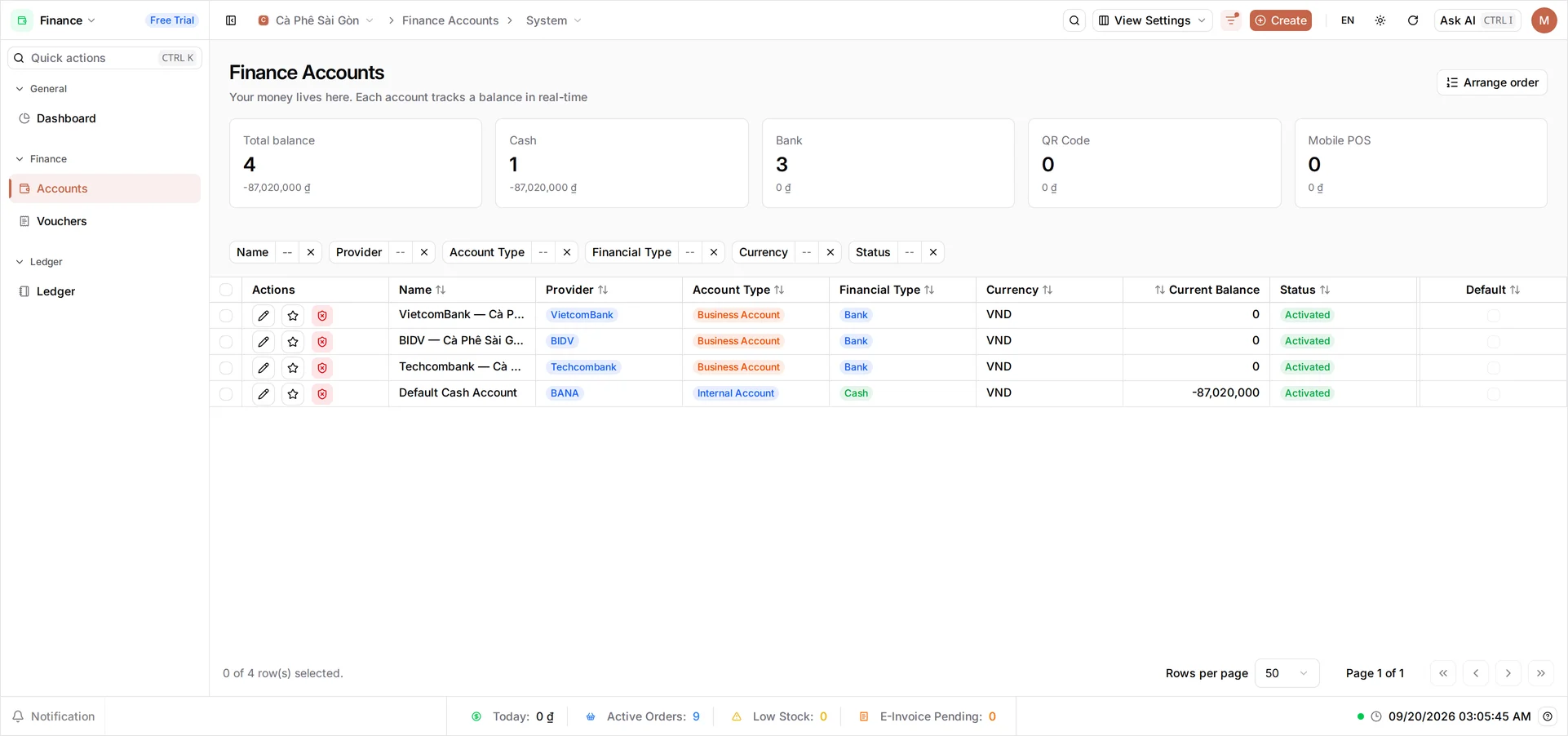
Open the Finance app from the dashboard and select Accounts. Every new store already has a Default Cash Wallet and a Default Bank Account, both Activated. Cash is always ready for POS; the Default Bank Account is bookkeeping-only until you attach it to a real bank.
Add the method you’re missing
If your store also takes bank transfer, QR, or a mobile POS terminal and it isn’t in the list yet, select Create and set Payment method to the matching type - Bank, QR Code, or Mobile POS. The remaining fields (bank, account number, opening balance, set as default) work the same way for every type - see Create a finance account for the full walkthrough.
Once you save and the account is Activated, it shows up immediately on the payment screen in the BANA Sale app - nothing else to switch on.
What you checked
Your till now accepts exactly what Cà Phê Sài Gòn decided on:
| Method | Account type | At POS |
|---|---|---|
| Cash | Default Cash Wallet | Always available |
| Bank transfer | Bank | Shows once the account is Activated |
| QR | QR Code | Shows once the account is Activated |
What’s next
Your store can now accept money. Time to open for customers.
- Walk through adding an account step by step - Create a finance account.
- See a method land on a real order - make your first sale.
- Issue e-invoices
Frequently asked questions
Do I have to accept bank transfer and QR?
No. The Default Cash Wallet is available for every store. You only add a Bank, QR Code, or Mobile POS account for the ways you actually accept payment, and you can add them once you're ready.
Why isn't there a dedicated payment-method on/off screen?
BANA doesn't have one. Each way of getting paid is a finance account - any account that's Activated automatically becomes a payment button at the till, with nothing else to switch on.
Where do these methods show up?
On the payment screen in the BANA Sale app, grouped as Cash, Bank, QR Code, and Mobile POS. Every account you add is a button the cashier taps when charging a customer.